








For Construction VPs
Know which homes are moving — and which quarter they'll close in.
Because the field actually uses TPTM, the numbers leadership sees are real. Manager view, Construction Manager leaderboards and close-date tracking turn what happened on site today into answers you can act on — without a phone call, a spreadsheet or a drive out to look.
Why the numbers hold up
Every walk is checked against the lot's pin.
Leadership reports are only as good as what the field puts in. In most programs that is the problem: the office sees a checkbox, and nobody can tell whether anyone stood on the lot.
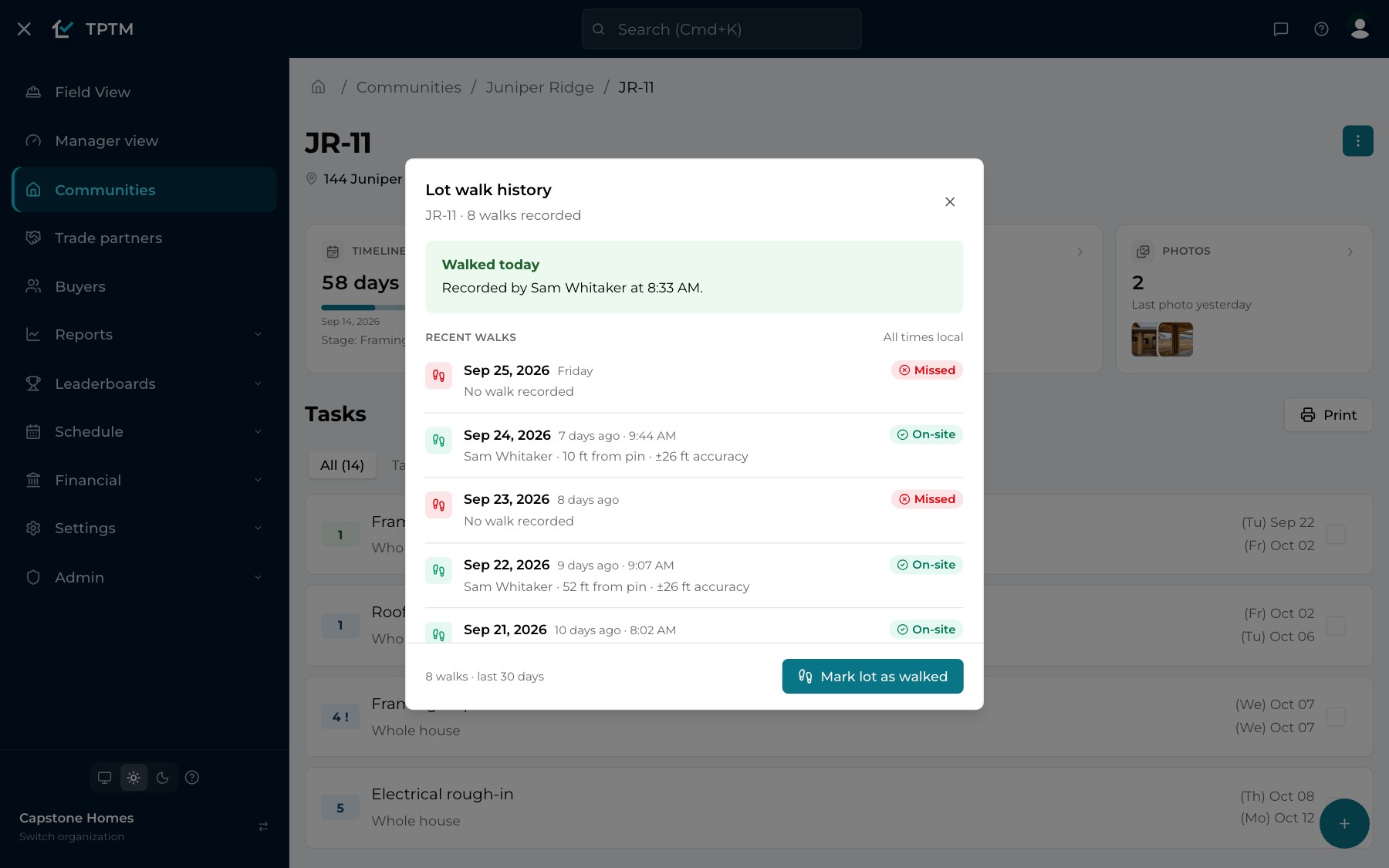
In TPTM, when a Construction Manager opens their own lot's page on site, the walk is recorded automatically — and it only counts as on-site when their device is within 100 feet of the lot's pinned location. Every lot keeps its full walk history: who walked it, when, how far from the pin, and every working day that was missed.
- Honest labels. Each walk reads On-site, Off-site (with the measured distance) or Unverified when no location could be read. A walk logged from the office says so.
- Gaps you can see. Working days with no walk show up as Missed — weekends and your holidays are never counted against anyone.
- One source for everything above it. The same walks feed Field View, the Walked Lots Leaderboard and the daily summary, so every number agrees.
Manager view
One page for what's going wrong right now.
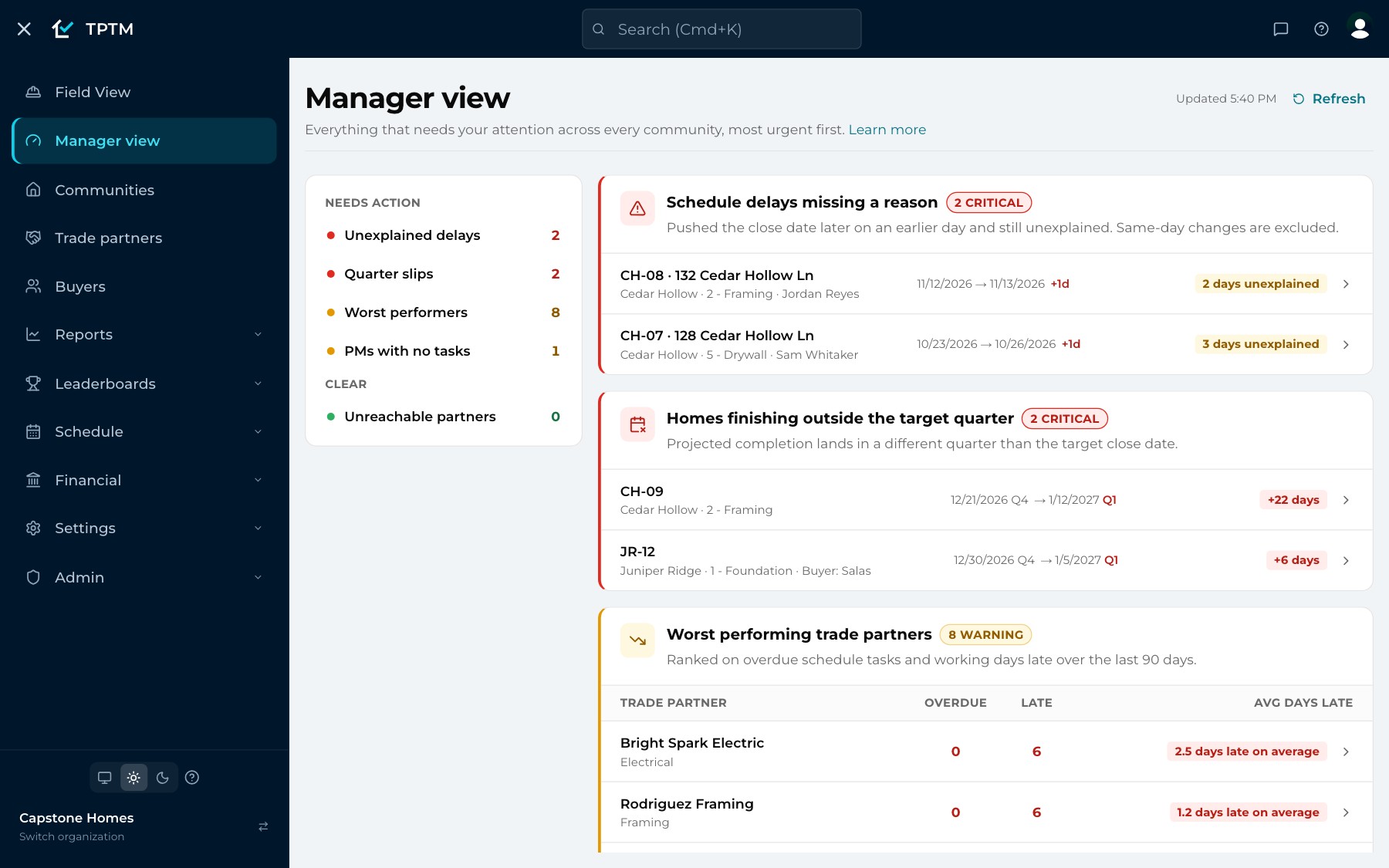
Manager view runs five checks across every community at once and puts the most urgent at the top. Each check is marked critical, warning or clear, with a count, and opens on the worst findings first.
There is nothing to configure, no date range to pick and no filter to forget. When someone fixes the problem where it lives, it drops off the page.
- Schedule delays missing a reason. Close dates pushed later on an earlier day and never explained — with how many business days they have gone unexplained.
- Homes finishing outside the target quarter. Every home whose projected close has landed in a different quarter than its target, biggest slips first.
- Worst performing trade partners. Ranked on overdue work and working days late over the last 90 days, one click from their performance report.
- Quiet project managers and unreachable trades. Anyone with active lots and no task created in a week, and any trade partner whose emails bounce or texts fail.
Construction Manager leaderboards
Accountability that doesn't need a meeting.
Eight leaderboards rank the people and partners who keep construction moving, each on a single measure, so it is obvious who is excelling and where coaching will help. They are built from live data every time the page opens — there is no overnight refresh to wait for.
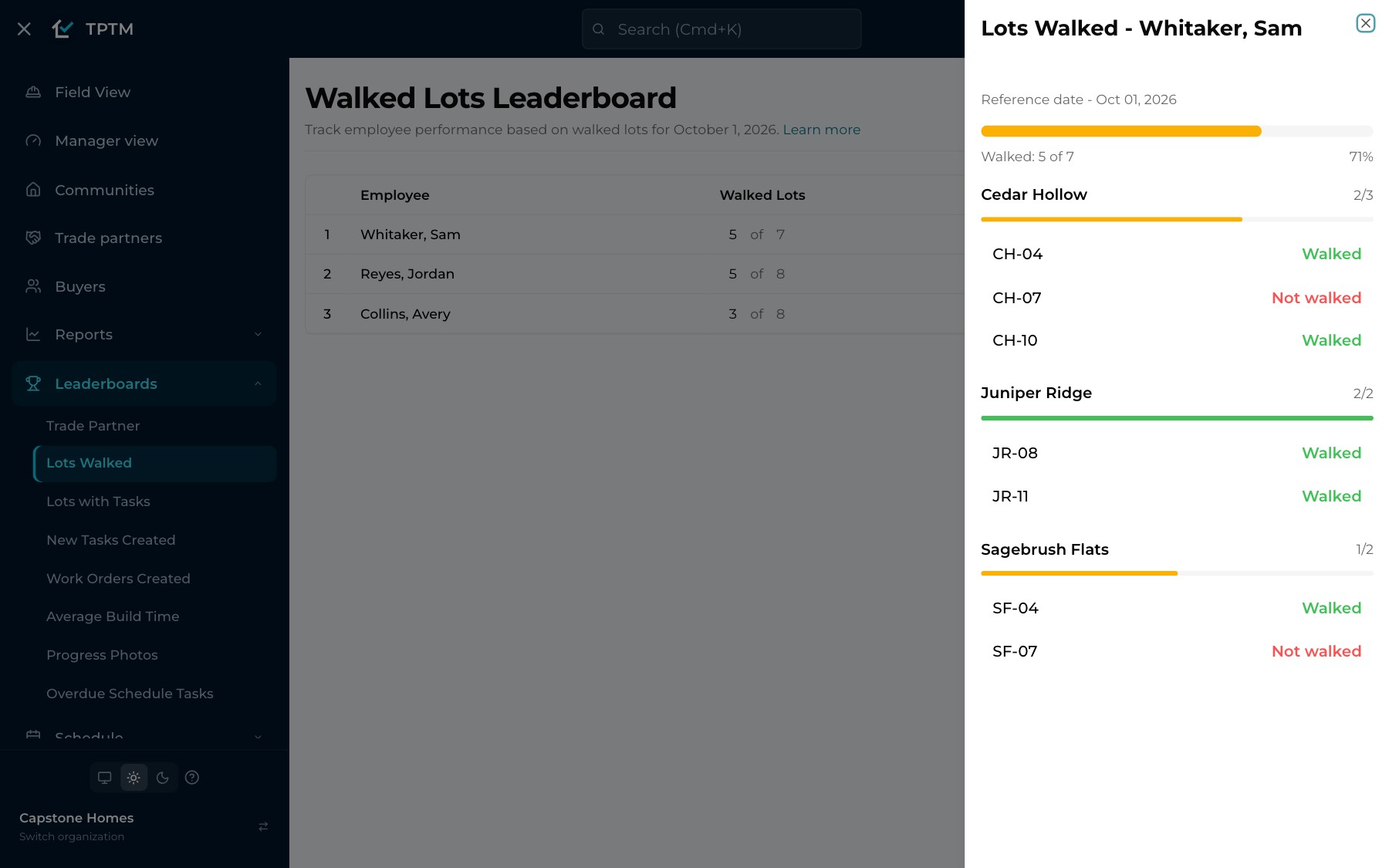
Click any row to see the lots behind the ranking: which lots a Construction Manager walked today and which they didn't, community by community, one tap from the lot itself.
- Lots walked and progress photos. The share of each person's active lots walked today, and the share with a progress photo from the last seven days.
- Overdue schedule tasks and lots with tasks. Who has work sitting past due on their active lots, and how many of their lots still carry open tasks.
- Tasks and work orders created. Who is actively managing their lots — new tasks created on a given day, and work orders created over the range you choose.
- Average build time. Each project manager's average build days over the last 120 days, compared with each lot's schedule target.
Close date changes
When a close date moves, you hear why.
Every time a schedule change moves a home's projected close, TPTM records it on the lot's activity timeline — Close delayed 3 days, Close accelerated 2 days — without anyone typing a thing.
A delay asks for an explanation: the lot page shows a yellow alert until the Construction Manager adds one. If it is still unexplained after the day it happened, it lands on Manager view for leadership to see.
- A daily close-date alert. Turn on the Daily Projected Close Alert and the people you choose receive every business day's net close-date changes by email or text, with the reasons attached.
- A daily summary, one link away. The Daily Report texts a link to that day's summary: projected close changes alongside the walks, photos and tasks leaderboards.
- The full history of every lot. Stages, holds, completed tasks with how early or late they finished, photos and every close-date change, newest first.
The quarter
See a closing leave the quarter the moment it happens.
Each home carries a target close date. The moment its projected close crosses into a different calendar quarter — out of this one, or into it — it is listed on Manager view with both dates, both quarters and the gap between them.
A three-week slip inside the same quarter stays off the list; a one-day slip that crosses the line is on it. That is the conversation leadership actually needs to have, surfaced before the quarter closes rather than after.
Stage management
Every home by stage, week by week.
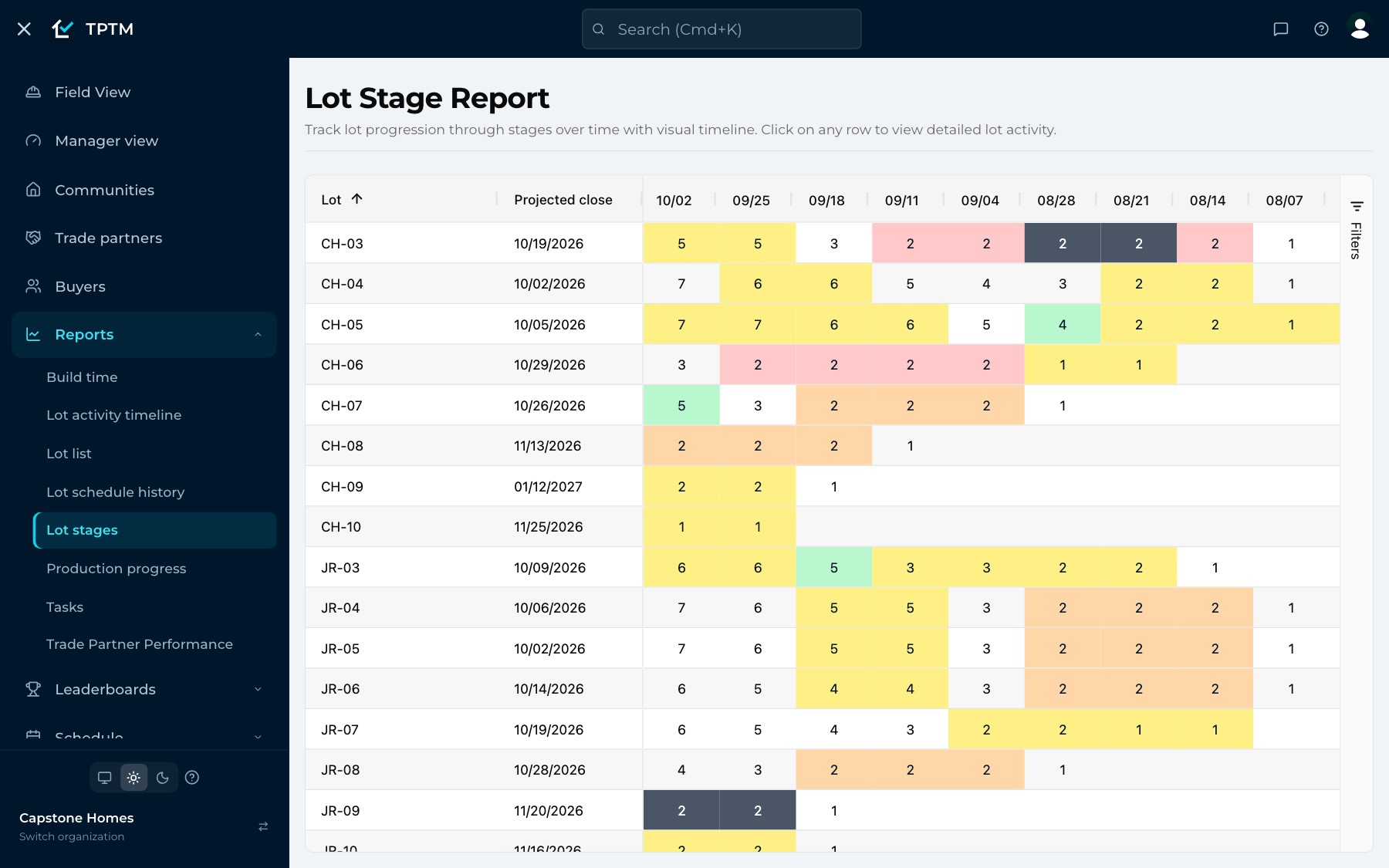
The Lot Stage Report lays every lot out against the calendar, with the stage it was in each week. Cells warm from yellow to red the longer a home sits in one stage, a jump of more than one stage shows green, and holds are shaded — so the homes that aren't moving stand out at a glance.
The Production Progress Report puts each lot's target and projected close beside its current and previous stage and how long it has spent in each. Click any row to open that lot's full activity timeline.
- Stages worked out for you. A lot's stage comes from which critical-path schedule tasks are complete — no one has to update it by hand.
- The same data the field uses. Nothing is re-keyed for leadership. The reports read the schedule, walks and tasks your Construction Managers already keep.
Questions
What builders ask about this.
How do we know a walk really happened on site?
An automatic walk only counts as on-site when the Construction Manager's device is within 100 feet of the lot's pinned location, and the walk history shows the measured distance. A walk recorded from farther away is labelled Off-site, and one with no location is labelled Unverified — nothing is quietly counted as a real visit.
Do we have to build or schedule these reports?
No. Manager view, the leaderboards and the reports are included and read your live data every time they open, so there is no overnight refresh to wait for. The only thing to set up is who should receive the daily close-date alert and the Daily Report text.
How do we find out when a close date moves?
Every move is recorded on the lot's activity timeline automatically. A delay prompts the Construction Manager for a reason, unexplained delays show up on Manager view the next day, and the Daily Projected Close Alert emails or texts the people you choose each day's changes with their reasons.
Who can see Manager view and the leaderboards?
Whoever your roles allow. Each check and leaderboard follows its own permissions, and a check someone isn't allowed to see is simply not shown to them rather than appearing empty or locked.
Why is a Construction Manager missing from a leaderboard?
Most employee leaderboards only list people with at least one active assigned lot — not archived, with its schedule started, and not on hold. Someone with no active lots is left off rather than shown with a zero.
Get started
Give the field a program it will actually use.
Tell us about your company and we'll show you TPTM running on homes like yours.
- Tell us about your homesTwo minutes, right here.
- See it on your communitiesA walkthrough built around how your Construction Managers and trades already work.
- Send your trades a linkNo onboarding, no sign-in. They're in.
Get started with TPTM
We'll get back to you personally.