







Overall schedule
Simple enough to read at a glance. Powerful enough to run hundreds of homes.
Every home you're building on one timeline — lot by lot, day by day, every trade in its place. See the week four homes need the same crew before it arrives, stagger the work, and project close dates you can actually hit.
The overall timeline
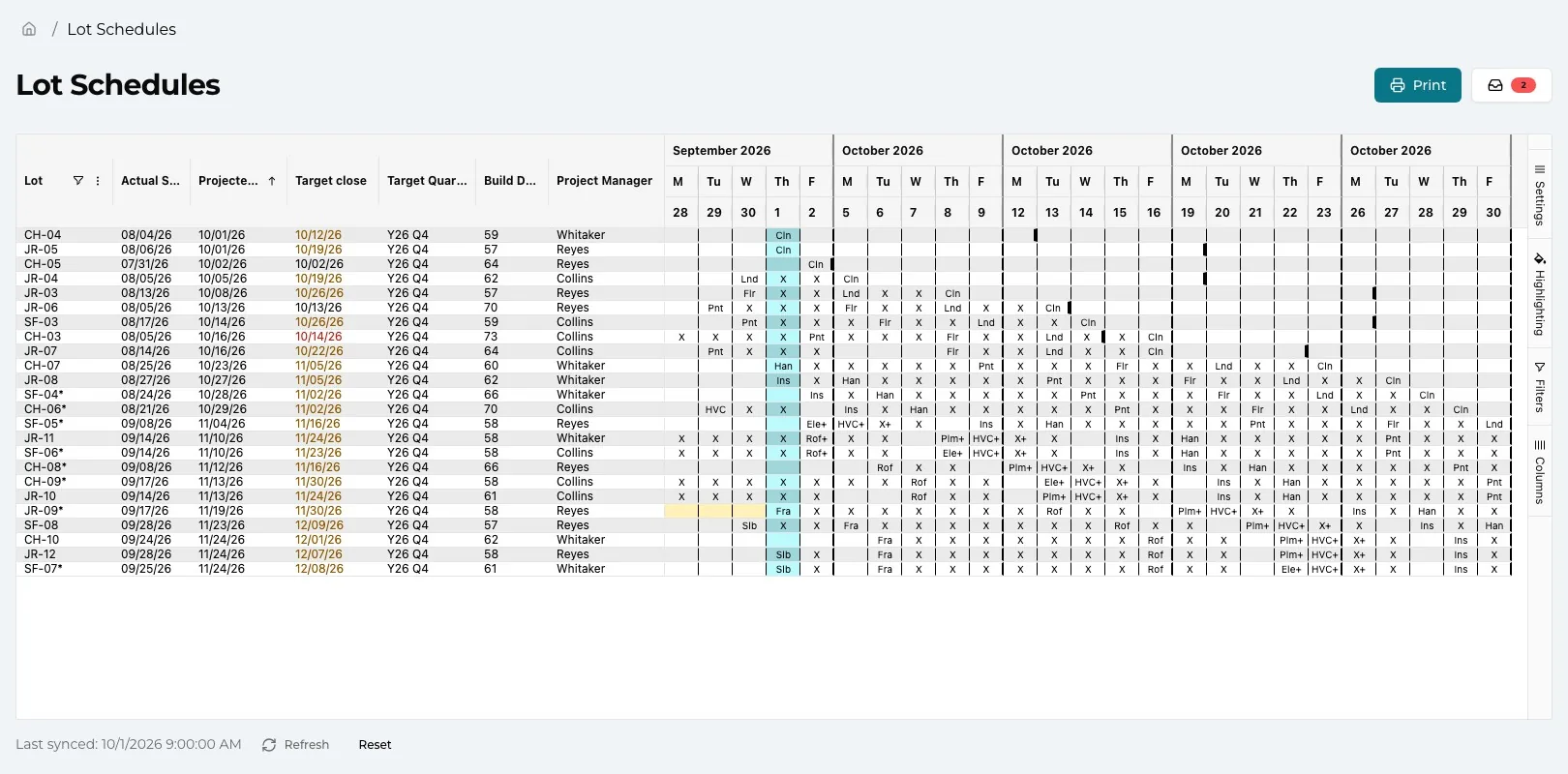
Every home on one screen, in the order it closes.
Most builders run the schedule out of a stack of spreadsheets, a scheduling module nobody outside the office opens, and whatever each Construction Manager keeps in their head. TPTM puts every lot in every community on one grid: a row per home, a column per working day, grouped into weeks.
A cell shows the short code of the task that starts that day — CARP, DWS, whatever codes your builder uses — then an X for each day it carries on, and a + when more than one task shares the day. Lots sort by projected close, so the homes you owe a buyer next are always at the top.
- The numbers beside every row Actual start, projected close, target close, target quarter, build days and project manager sit pinned to the left while the weeks scroll.
- Slips announce themselves Target close turns amber when the projection is within about 15 working days of it and red once it has slipped past. A target quarter turns red when the home now lands later, green when it lands earlier.
- Hover for the detail Hover any day to see its tasks by name, split into critical path and sub-path, with completed and overdue work marked. Overdue tasks turn red in the grid itself.
Trade highlighting
See the crunch before your crews do.
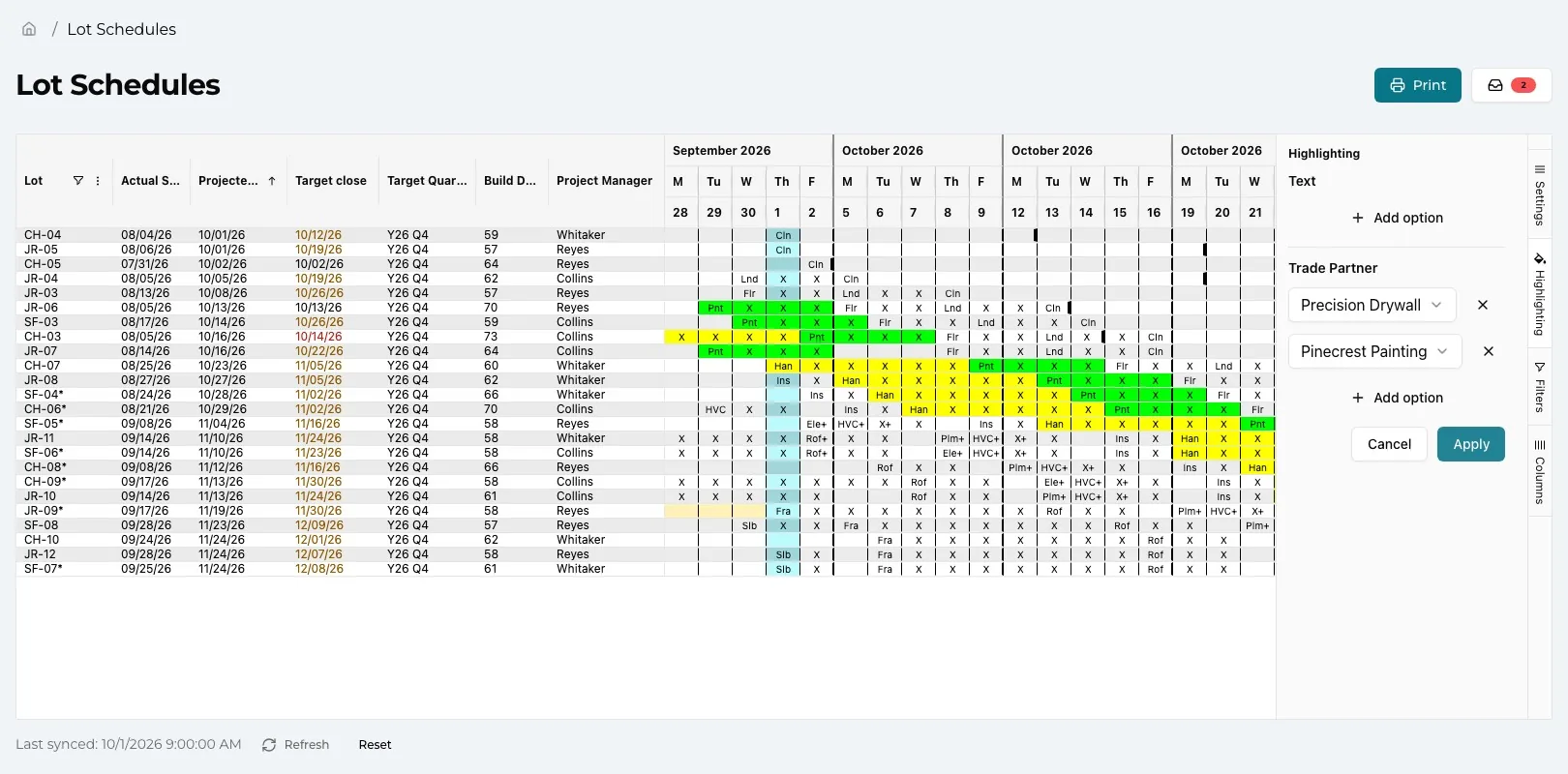
The expensive schedule problems aren't one late task. They're the week three, four, five homes all reach drywall together and one crew can't be in five places. On a list of tasks that pattern is invisible; on the timeline it's a column of colour.
Pick up to four trade partners in the Highlighting tab and every one of their days lights up in its own colour across every lot. Stack drywall against paint and you can see whether the painters are about to trip over the tapers — weeks before it happens.
- Highlight by partner or by code Colour a trade partner's work, or up to three task codes, across the whole grid. A partner who does several trades can be highlighted for just one.
- Mark the lots you're watching Right-click a row to tint the whole lot, so the homes you're walking a meeting through stand out from the rest.
- Cut it down to what matters Filter to one community or a handful of lots, pick the weeks you care about, show or hide weekends, sub-path work and completed tasks. Your layout is remembered next time.
Batch scheduling
Stagger a whole community in one pass.
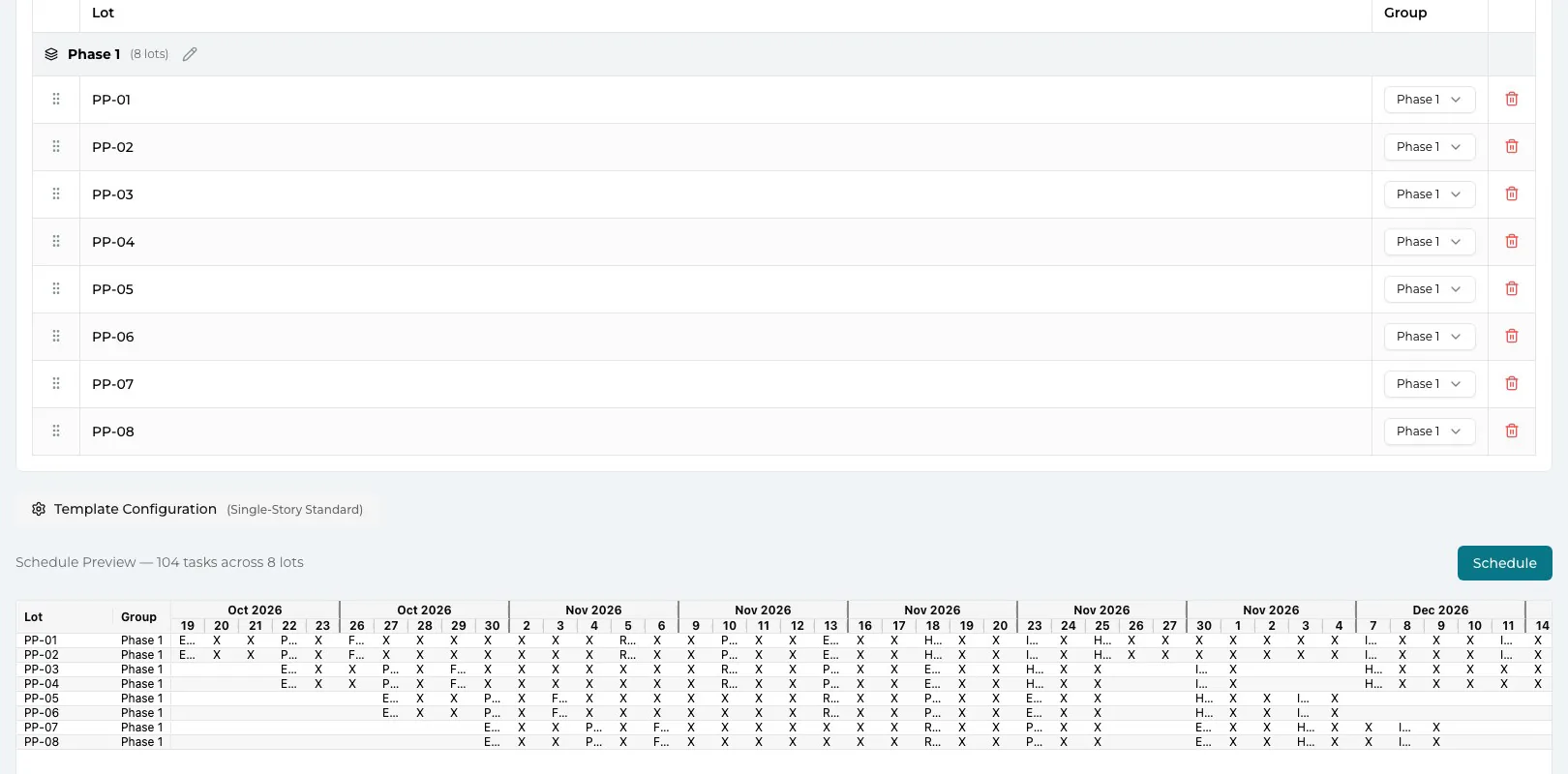
Build a schedule template once — the critical path in build order, plus the sub-path work that runs in the gaps — and lay it down on a lot, or on a whole community at a time with Batch schedule.
Batch schedule is where the stagger happens. Group and order the lots, pick the template and a start date, and set how many lots may run each task at once. TPTM packs the lots against that cap, counts only working days, skips your holidays, and shows you a preview of every date before a single task is created.
- A cap per task Max Parallel limits how many homes run a task on any one day; Min Parallel holds a batch until enough homes are ready to start together.
- Phases that wait their turn A group can wait for the previous group to finish a stage before it starts that stage itself.
- Straight to the result When the batch runs, the timeline opens on the lots you just scheduled, highlighted, so you can see exactly where they landed.
Adjusting the schedule
When the dates move, move them in seconds.
Real builds slip: a truss delivery is late, rain stops the exterior, a change order adds a week. Right-click a lot's day on the timeline and choose Move schedule — enter the number of working days, see the new start date before you commit, and every incomplete task from that day shifts together. Completed work keeps its dates, so the history never gets rewritten.
Change a single task's due date and TPTM asks how much of the change should overlap the next tasks and how much should push them out. When other lots depend on this one, you can shift them by the same amount in the same step.
- Working days, not calendar days Weekends and your company's holidays are skipped, so a three-day move from a Thursday lands on Tuesday.
- Holds are part of the picture A paused lot's days are shaded on the timeline, hover shows the hold's dates, and once a hold ends its days come out of the lot's build days.
- Start over cleanly Clear a lot's remaining schedule or re-lay it from a template, part-way through, without touching the work already done.
Trade partner timeline
One trade's month, across every lot.
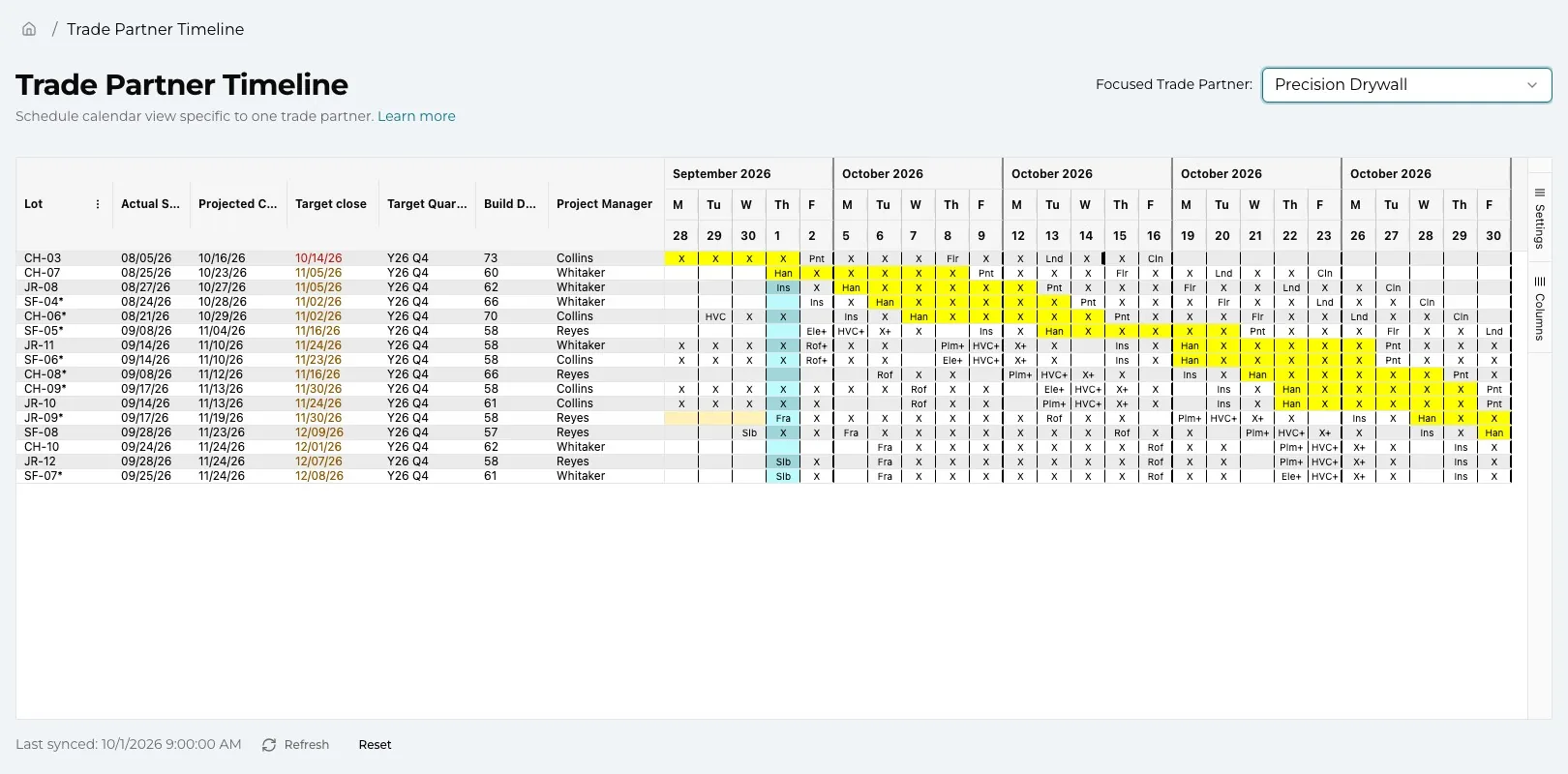
Before you call a trade partner, open the Trade partner timeline and pick them. The grid narrows to the lots where they have work in the range, ordered by when their first task starts, with every one of their days highlighted and the work around it left in for context.
It's the conversation you'd have with a whiteboard — which houses, which days, what has to be done before they show up — without anyone rebuilding a spreadsheet first.
The schedule calendar
Trades see the same schedule — no login required.
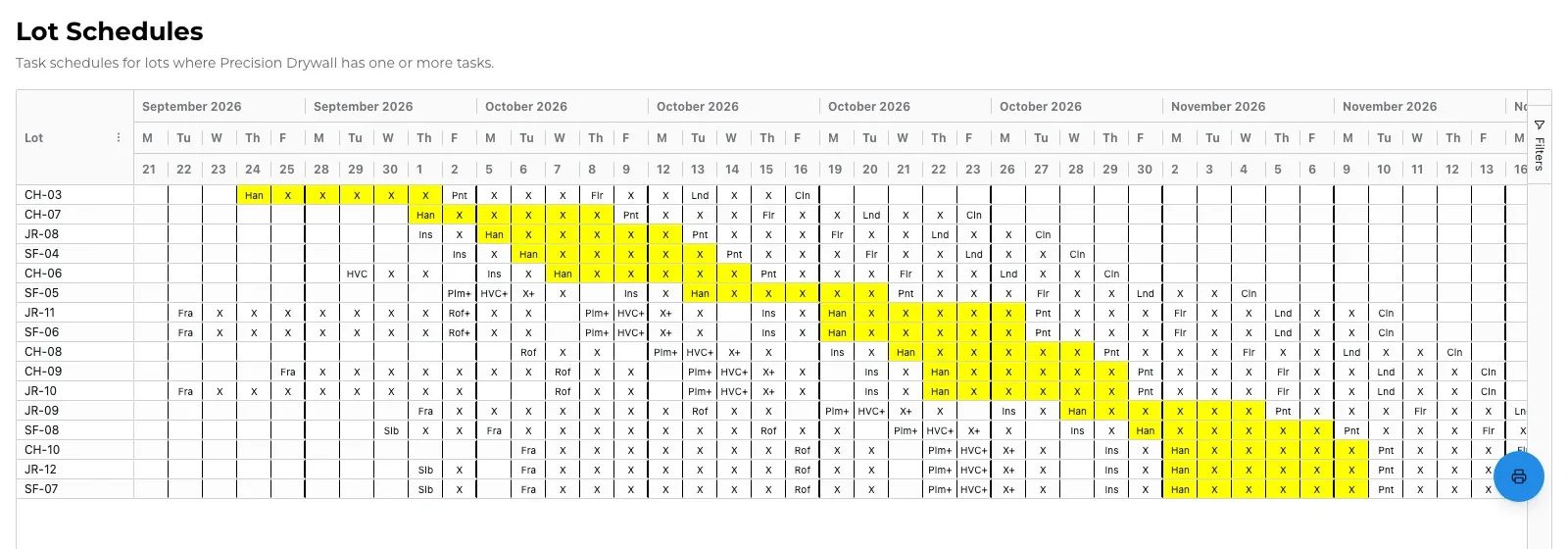
Every trade partner gets a Schedule Calendar of their upcoming work: a row per lot, a column per work day, their own tasks coloured by job type and everyone else's shown plain for context. It opens from their Trade Partner Portal, or from a link you send them — no account, no app, no password.
Because it reads the same schedule you do, there's no second copy to keep in sync. Move a lot in TPTM and the trade's calendar shows the new dates.
- Their jobs, their colours Each of the trade's task types gets its own colour on every lot and every week, and hovering a day doubles as the key.
- The lot details you choose Add up to six lot columns — such as target close or project manager — for the trade partners you pick.
Projected close
Close dates you can stand behind.
Every home's projected close comes straight from its live schedule, and every time it moves, TPTM records by how many days. When a delay has no explanation yet, the lot page asks for one, and the timeline's inbox gathers the unexplained ones in one place.
So when a VP asks why Lot 9 slipped into next quarter, the answer is already written down — on the lot, next to the dates.
Questions
What builders ask about this.
How many homes and communities can the overall timeline show?
All of them. Every lot you're building, in every community, sits on the same timeline. Filter to one community or a few lots when you want to focus, and pick the range of weeks to show.
Do we have to build every schedule by hand?
No. Build a schedule template once — the critical path plus the sub-path work around it — then lay it on a single lot or a whole community with Batch schedule, with dates calculated in working days and your holidays skipped.
What happens to the schedule when a lot goes on hold?
Recording a hold doesn't move any tasks by itself. The hold days are shaded on the timeline and the lot is marked On Hold. Build days stay blank while the hold is open, and once it ends its days are left out of the count. When the dates need to shift, use Move schedule to push the lot out in working days.
Can our trade partners see the schedule?
Yes. Each trade partner has a Schedule Calendar of their upcoming work on every lot, opened from their portal or from a link you send. They don't need an account, an app or a password.
Can I print it for the Monday meeting?
Yes. Print lays out the rows and weeks you're looking at for paper, and the page identifies itself so a printout on the wall still says what it is.
Does the timeline stay current while it's open?
Yes. The timeline refreshes itself every minute, shows when it last synced, and has a Refresh button when you want it now.
Get started
Give the field a program it will actually use.
Tell us about your company and we'll show you TPTM running on homes like yours.
- Tell us about your homesTwo minutes, right here.
- See it on your communitiesA walkthrough built around how your Construction Managers and trades already work.
- Send your trades a linkNo onboarding, no sign-in. They're in.
Get started with TPTM
We'll get back to you personally.