







For your trade partners
No sign-up. No login. Just a link.
Your trades never create an account, pick a password or download an app. They tap a link in a text or email and see everything they have with you: open work, what's due today, what's running late, their own on-time record and the reports they plan the week from.
Getting trades in
One link. Nothing to set up.
Every builder software rollout runs into the same wall: the trades. They work for several builders, each with its own login, and the newest hire on the crew has never heard of yours. So the schedule lives in your system while the trades keep working from phone calls and screenshots.
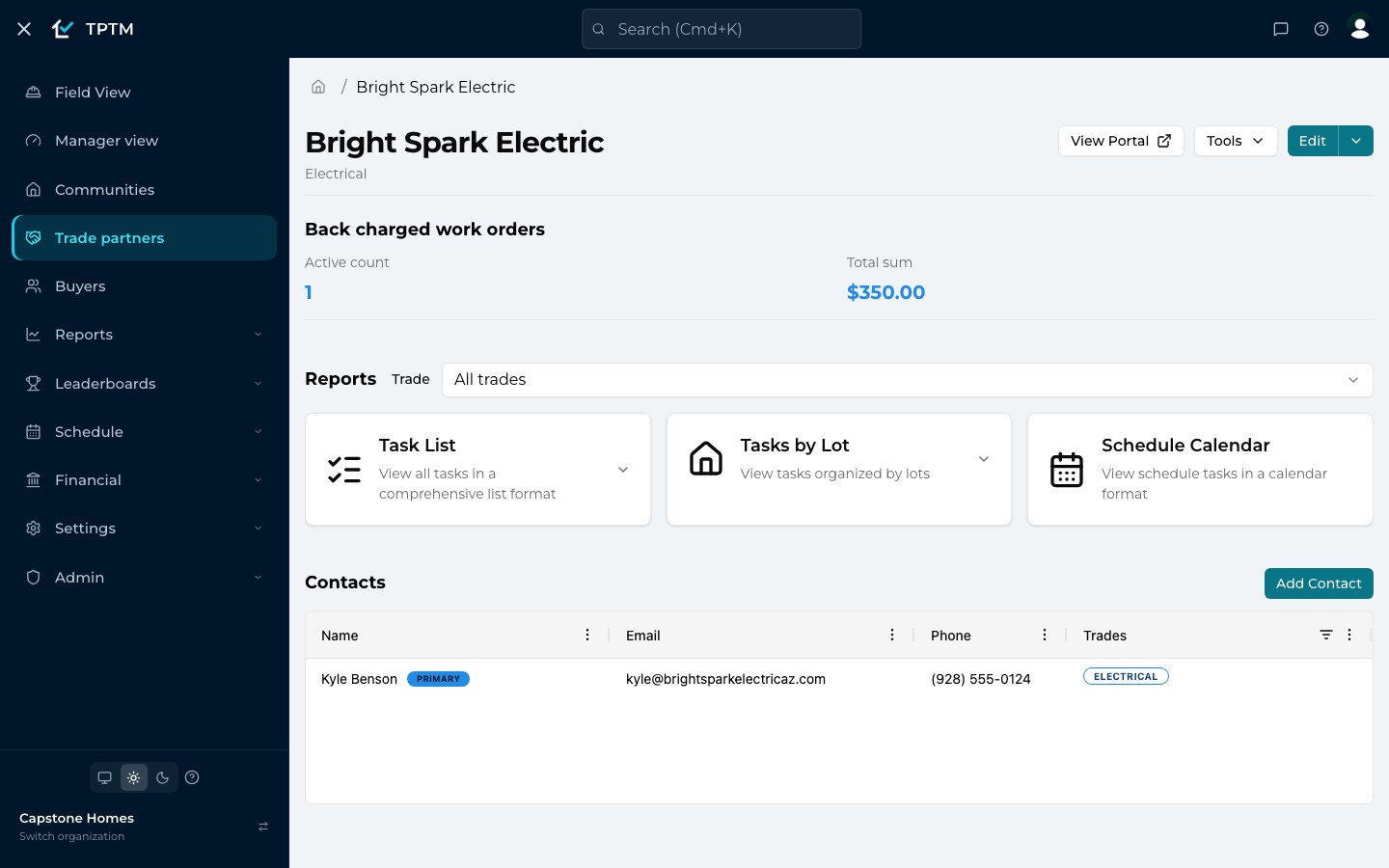
TPTM skips the wall. Each trade partner gets a portal of its own, reached by a link. On weekdays when a trade has unfinished work due in the next four weeks, TPTM emails a daily report with that link to the contacts you've assigned to that trade, and texts it too when a mobile number is on file. Your team can also open the portal from the trade partner's page with View Portal and send the link directly.
- Nothing to install or remember No account, no password, no app store. The link opens in whatever browser is already on the phone.
- The same link, every time A trade's portal address never changes, so they can bookmark it and share it with their own crew leads.
- Arrives where trades already look A weekday email and text while there's open work, so nobody has to remember to go looking.
The moment it opens
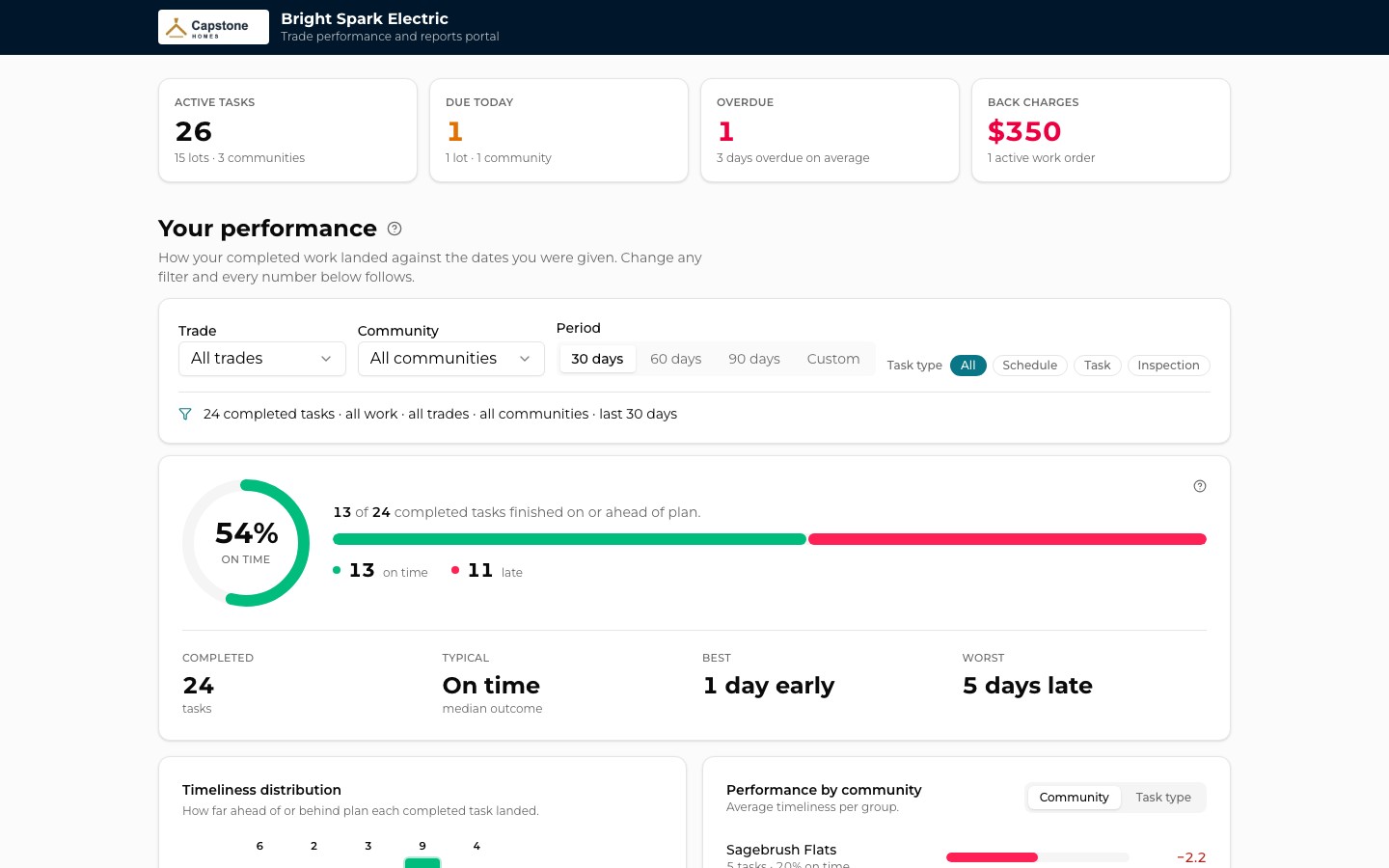
Where they stand with you, in four numbers.
Before, a trade finds out what's next from a call to your Construction Manager, or from a PDF schedule that was already out of date when it was sent. Behind the TPTM link, the first thing they see is live.
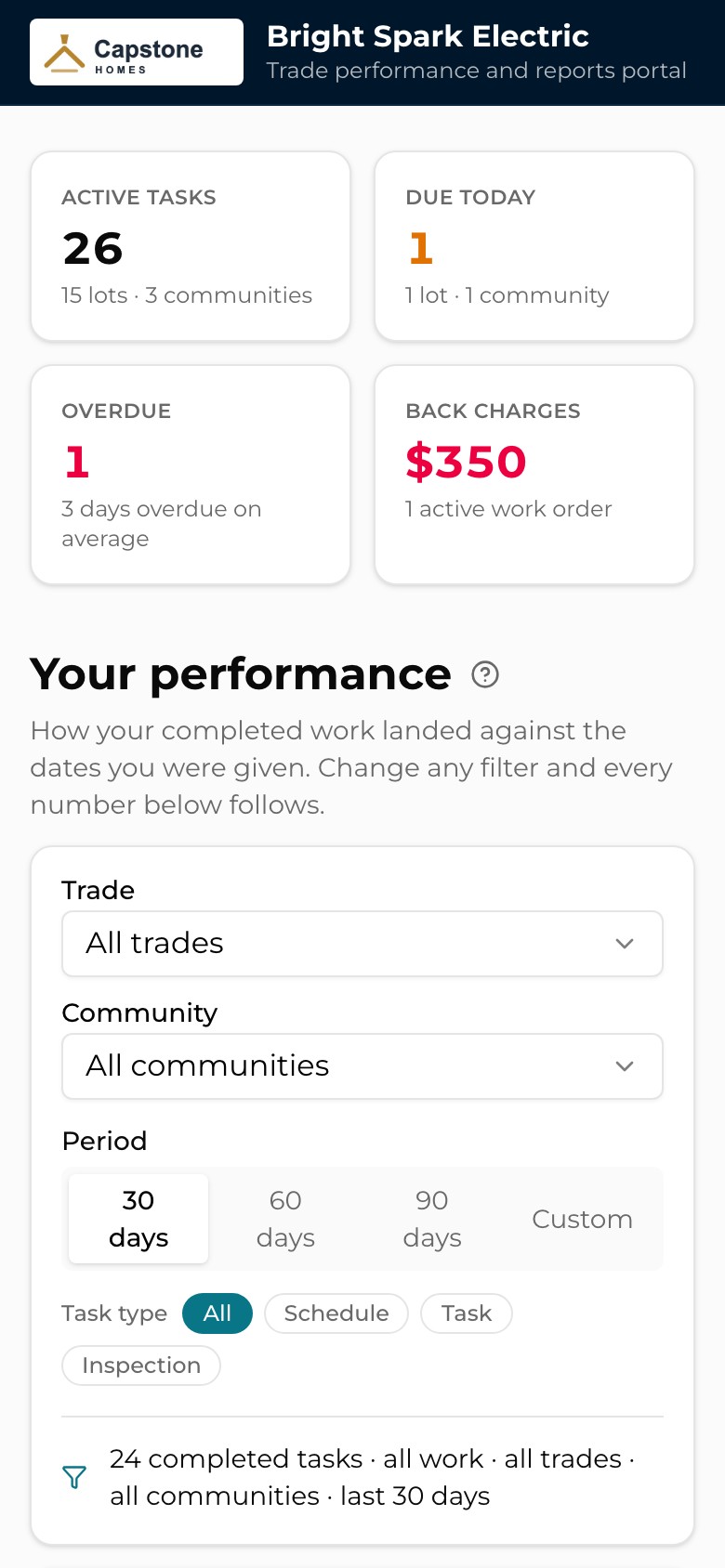
Across the top of the portal: every active task they have with you and how many lots and communities it covers, what's due today, what's overdue and by how many days on average, and the total of any active back-charge work orders you've recorded against them. A zero means they're clear, not that something failed to load.
- Across every community One portal covers all of that trade's work for your company, whichever community it's in.
- Back charges are no surprise The total and the count of active back-charge work orders sit beside the schedule, not in a month-end statement.
Their on-time record
A scorecard trades can check for themselves.
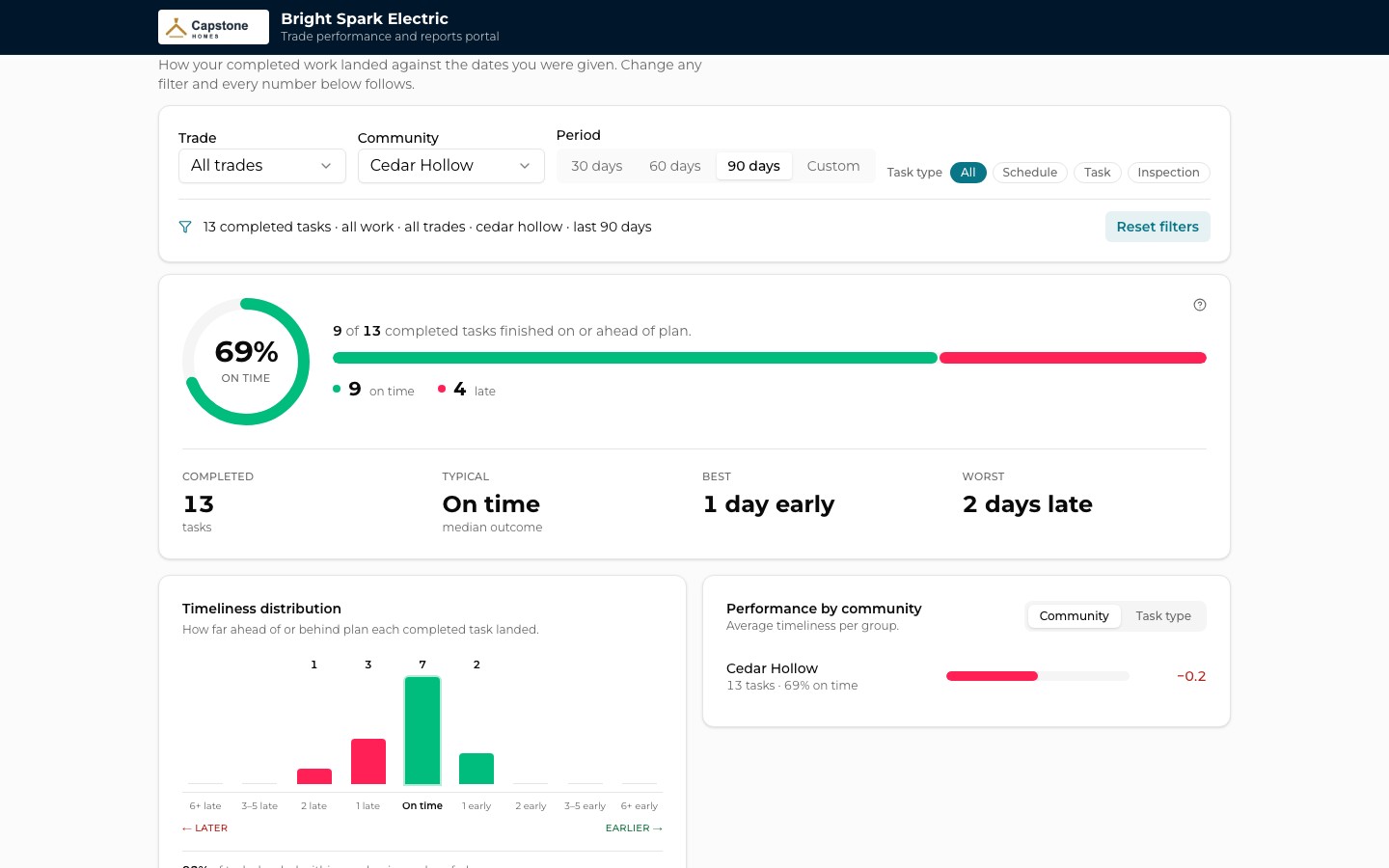
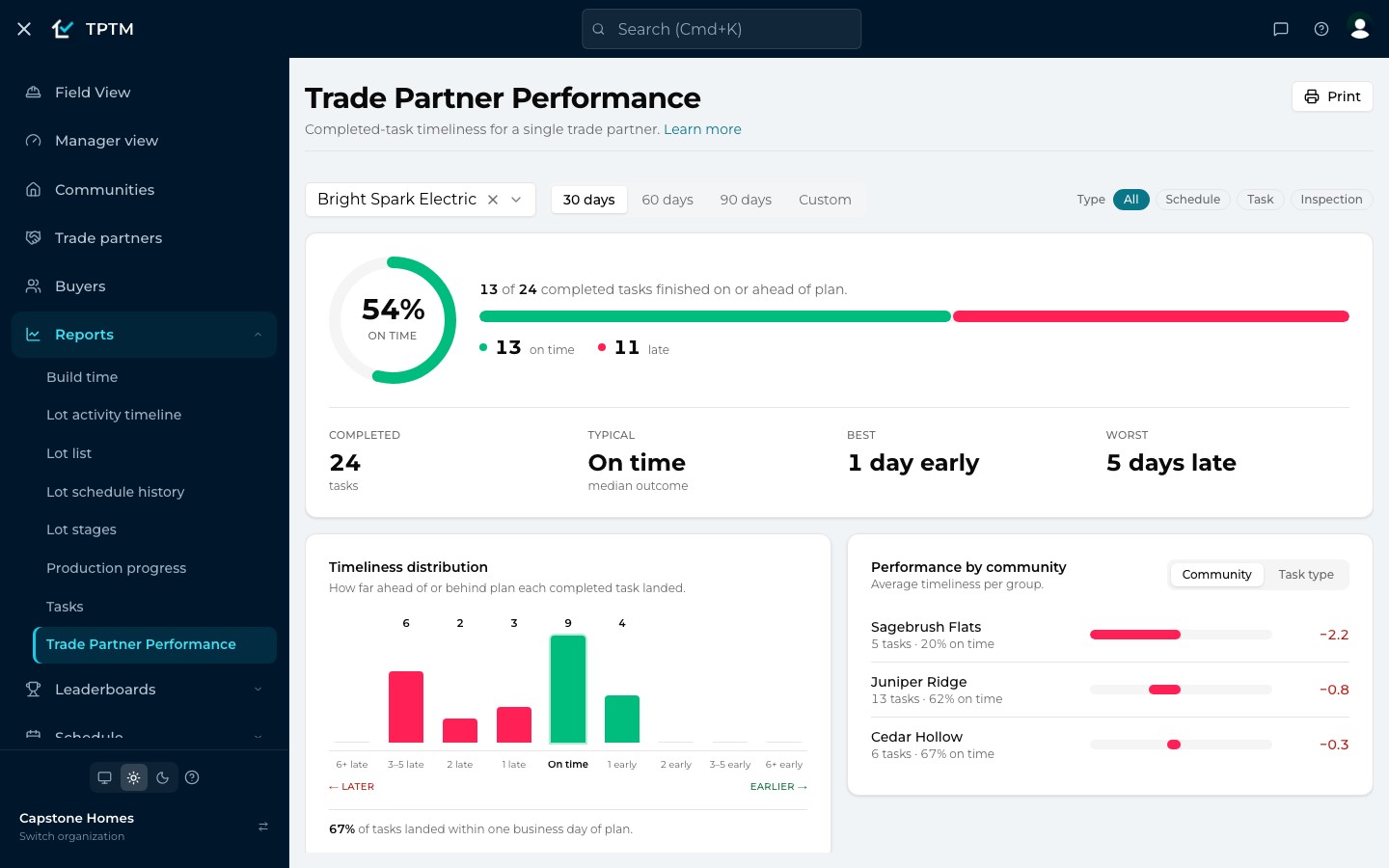
Trades often never see how a builder rates them until a tense phone call. In TPTM, a trade's on-time performance is right there in their portal: the share of finished tasks that met or beat their date, a timeliness distribution from six-plus days late to six-plus days early, and a breakdown by community or by task type with the worst listed first.
The scoring is fair on purpose. Scheduled work is measured against the window the trade was originally given, not a date someone moved afterwards. Days count as working days, and holidays on your calendar don't count against anyone.
- Filter it their way Trade, community, the last 30, 60 or 90 days or a custom range, and schedule, task or inspection work. Every number follows the filters.
- Shareable views Filters live in the page address, so a trade can bookmark a view or send it to a foreman, who sees exactly the same thing.
- Always spelled out A plain sentence under the filters says exactly what's counted, for example “9 completed tasks · all work · all trades · cedar hollow · last 90 days”.
Planning the weeks ahead
See the whole run before you commit a crew.
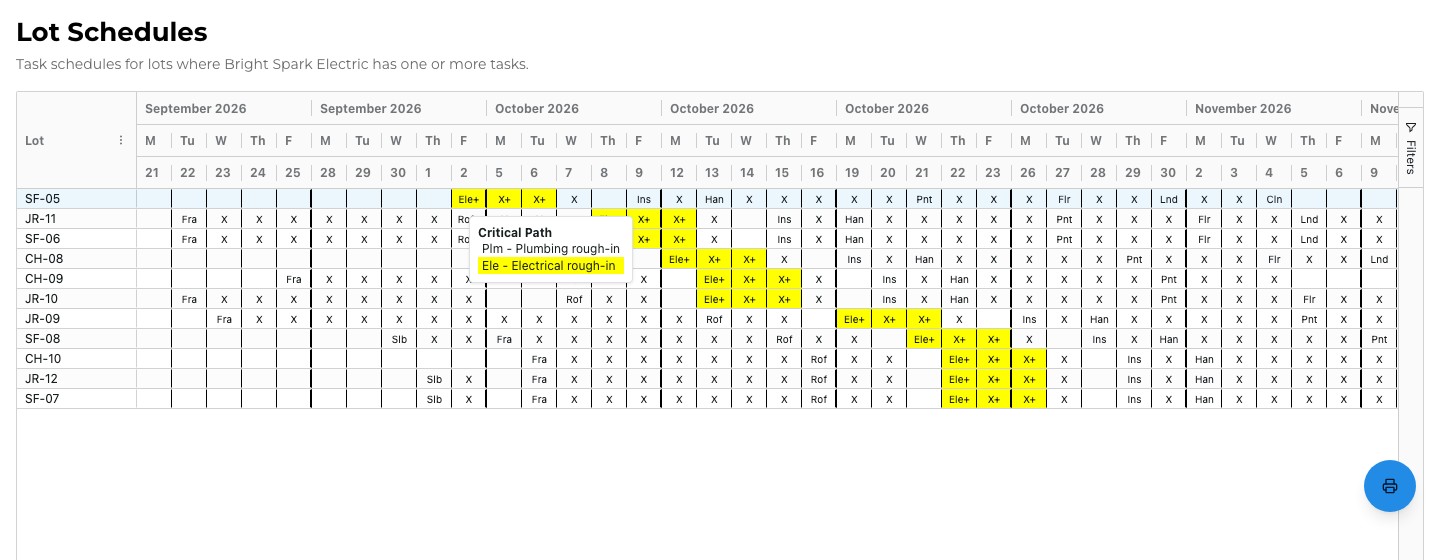
The Schedule Calendar is a wall calendar of every lot where the trade has scheduled work: one row per lot, a column per working day, the lot they're needed on soonest at the top. Their own work is highlighted, and when they have more than one kind of task on the calendar, each kind gets its own color.
It also shows the other trades' work on those lots, in plain cells. That's deliberate: a trade can see what has to finish before they roll a truck. Hover over a day (or press and hold on a phone) to see every task on it, grouped into critical path and sub path.
- Lot details you choose You can add up to six lot columns beside the lot name, such as target close, projected close or the project manager.
- Print it or save it Every report has a print button for paper or a PDF, for the crew that still wants it on the dash.
Dispatching the crew
A current list, ready to hand a crew.
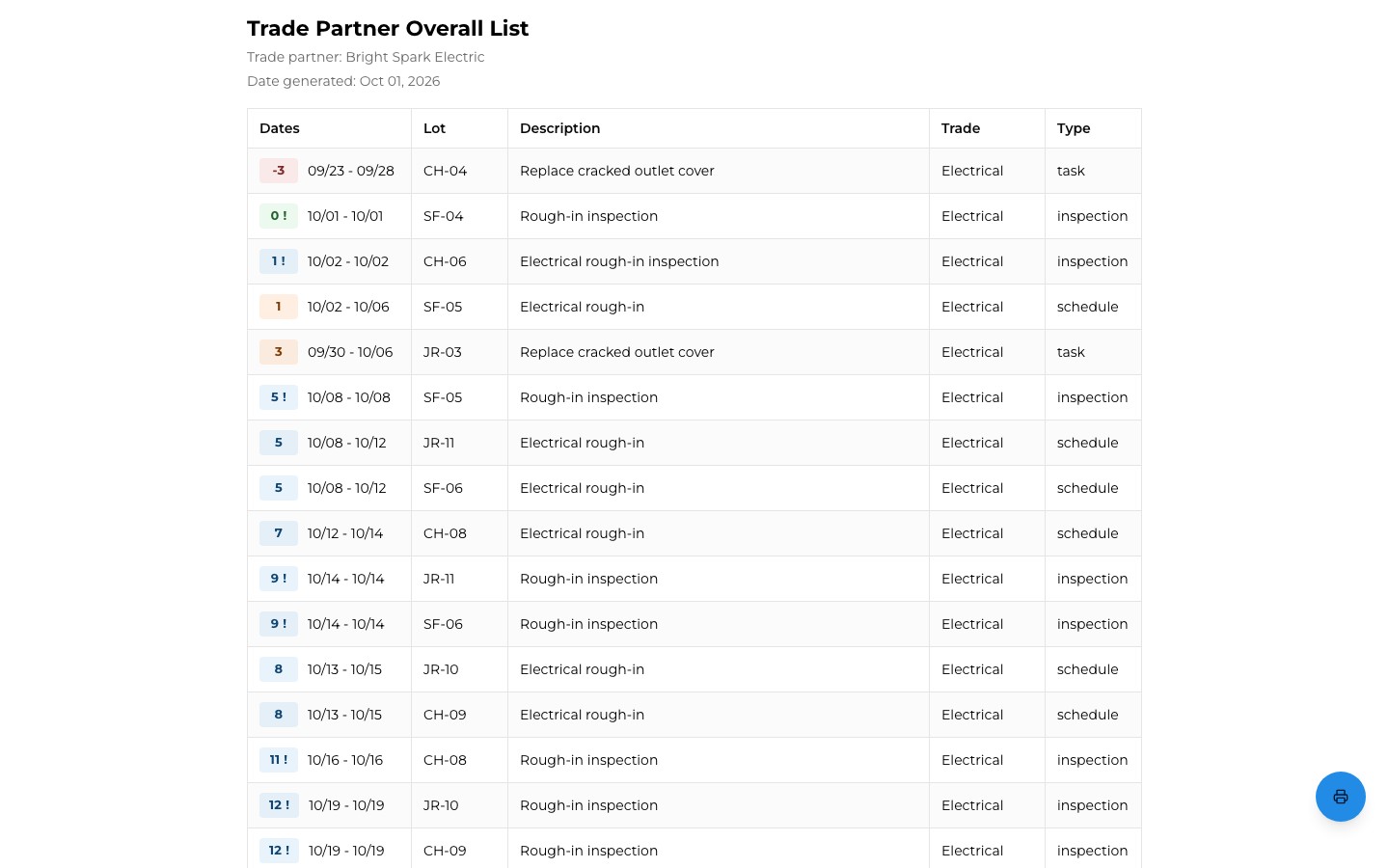
The Task List puts every unfinished task due in the next four weeks in one list: dates, lot, description, trade and type, each tagged with its status, from overdue and startable to active, upcoming and inspection. Tasks by Lot groups the same work by community and lot, with the project manager's name and phone number on each lot.
Both open straight from the portal as plain links, already filtered to the trade the viewer picked, and narrow to all work, tasks only or scheduled items only. Because they read your live schedule, nobody is working from last week's printout.
- One source of truth The portal and its reports are view-only. Dates come from your schedule, so a trade can't drift out of step with it, and corrections go through your project manager.
- Multi-trade companies A partner that does, say, plumbing and HVAC can look at one trade at a time; the choice carries into every report link.
In the truck
Built for the phone in a trade's pocket.
The portal works on the phone a trade already carries. Plans are a lot picker: choose a lot to see its plan number and open your file folder for it in a new tab. The contacts list shows who you have on file for the trade's crews, with one-tap call and email buttons.
When something looks wrong, a Provide feedback button opens an email to us, and the footer tells the trade plainly that the numbers come from you and to contact their project manager to change them.
For the office
The same numbers on both sides of the table.
The scorecard in the portal is the Trade Partner Performance report your Construction Managers and purchasing team use in TPTM, with the same measure and the same scoring. Put them side by side for the same trade and period and they match.
So the conversation about a trade's timeliness starts from agreed facts rather than competing spreadsheets. The trade has seen their record before you call, and your office knows the trade has seen it too.
- Construction Managers Fewer “what's next?” calls, because the trade's list is already current.
- Purchasing and VPs A fair, documented on-time record for every trade when it's time to talk pricing or awards.
- Trade partners Their own work, their own record, and the week ahead, from one bookmark.
Questions
What builders ask about this.
Do my trades need an account, a password or an app?
No. Trade partners never sign in to TPTM. They open their portal from a link in the daily email or text, or one you send them, in any phone or computer browser.
How do trades get their portal link?
On weekdays when a trade has unfinished work due in the next four weeks, TPTM emails the contacts you've assigned to that trade a daily report with the link, and texts it when a mobile number is on file. You can also open any trade's portal from their page in TPTM with View Portal and send the address directly. The link never changes.
Who can see a trade's portal?
Anyone who has the link, because there's no sign-in. It shows only that trade partner's work with your company, and the link is an unguessable address, so treat it like any private link and share it only with the trade's own people.
Can trades change dates or mark work complete from the portal?
No. The portal and its reports are view-only, so your schedule stays the one source of truth. Every date comes from TPTM, and trades ask their project manager for changes.
If we move a due date, does it hurt the trade's on-time score?
Not for scheduled work. Scheduled tasks are scored against the window the trade was originally given, counted in working days with your holidays excluded. Other task types are scored against their current due date.
Is the portal available in Spanish?
The portal and the daily report emails are in English today. The on-site list a crew reaches by scanning a lot's QR code is available in English and Spanish.
Get started
Give the field a program it will actually use.
Tell us about your company and we'll show you TPTM running on homes like yours.
- Tell us about your homesTwo minutes, right here.
- See it on your communitiesA walkthrough built around how your Construction Managers and trades already work.
- Send your trades a linkNo onboarding, no sign-in. They're in.
Get started with TPTM
We'll get back to you personally.