








On-site QR code
Everything about the site, one scan away.
Post one sheet at the home. Anyone on site points their phone camera at it and gets the lot's open punch list by trade, the plan files and the Construction Manager's number, in English or Spanish. No app, no login, no call to ask.
Why it matters
The question every crew asks when they pull up.
A crew arrives at a home. What's still open here for us? Where are the plans? Who's running this job? On most jobs the answer is a text or a call to the Construction Manager, who is usually standing in a different house.
Printed punch lists taped to a window don't fix it. They're out of date the day after they go up, and nobody knows which copy is current.
The on-site QR code answers those three questions at the home itself, from the phone that's already in the crew's pocket.
- For trades Walk up, scan and see your own open work on this lot, without an account, a password or an app to install.
- For Construction Managers Fewer calls to ask what's left, where the plans are and who to talk to.
- For the office One sheet per lot, printed once. What it shows is kept current by the same TPTM data your team already works in.
Step 1
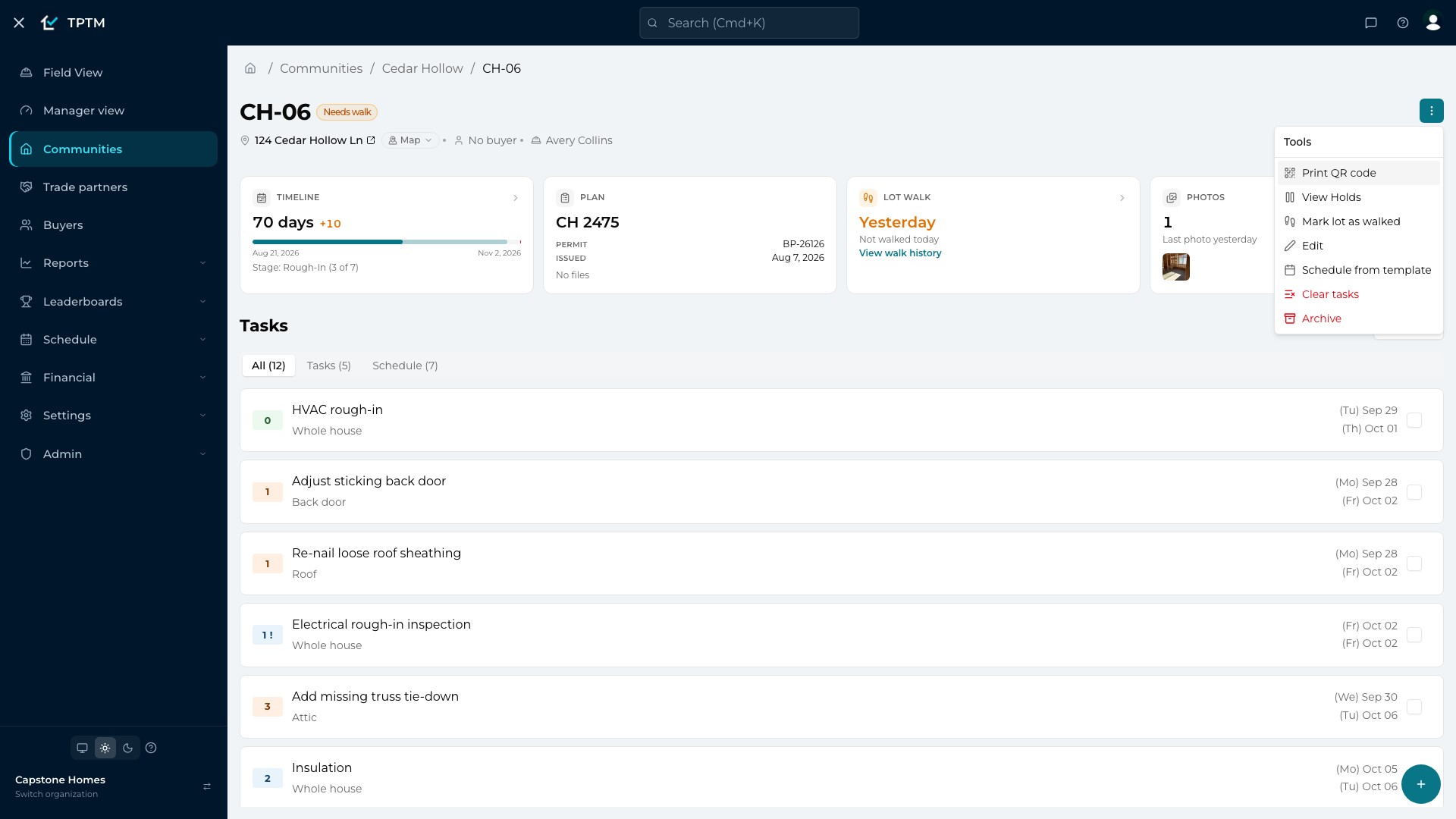
Print it once from the lot page.
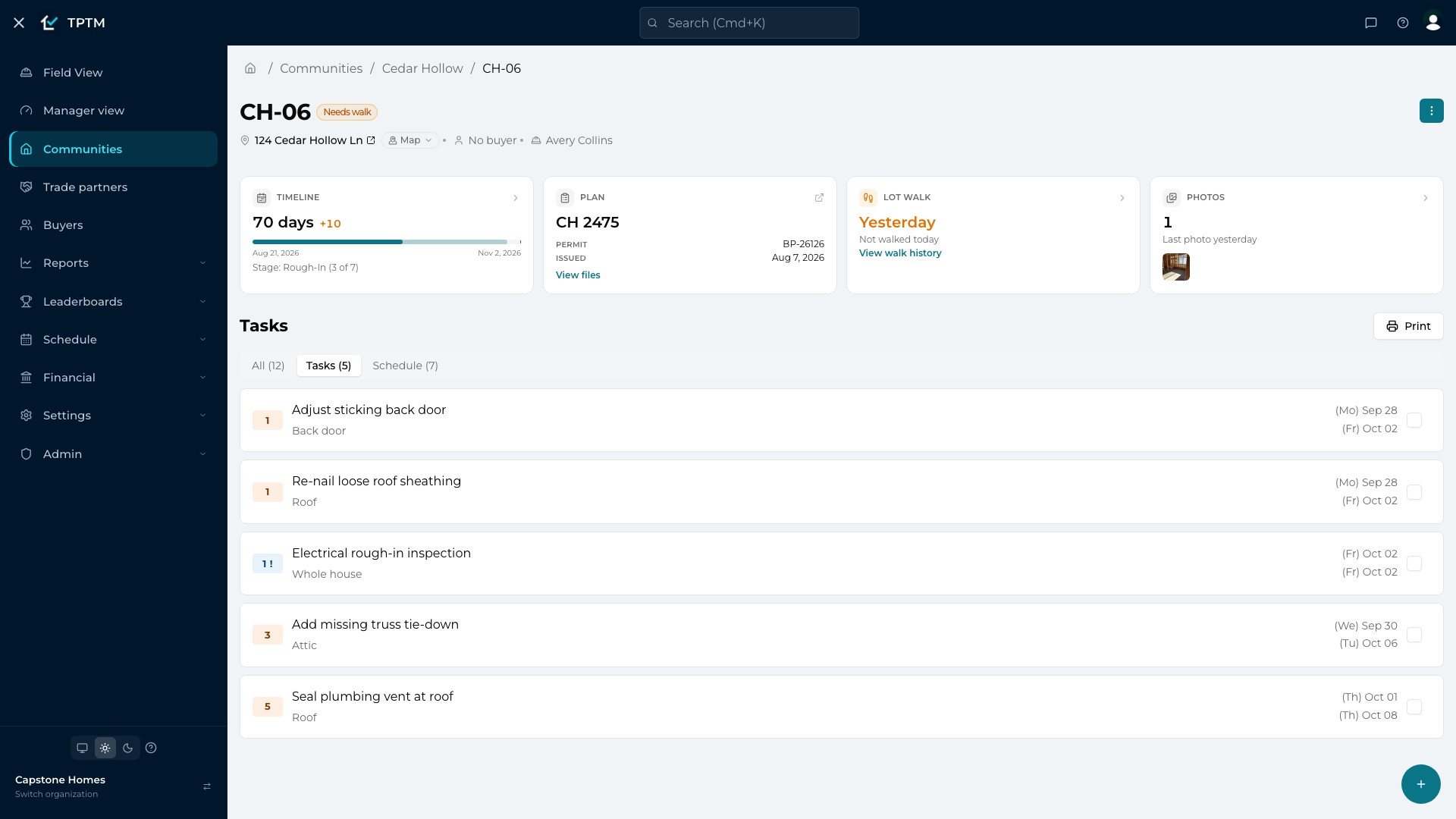
Every lot page has a Tools menu, and Print QR code is in it. It opens a print-ready sheet in a new tab, so you never leave the lot you were working on.
The field app's Tools menu has the same Print QR code shortcut, which opens the sheet on the website.
The sheet
A sheet that says whose home this is.
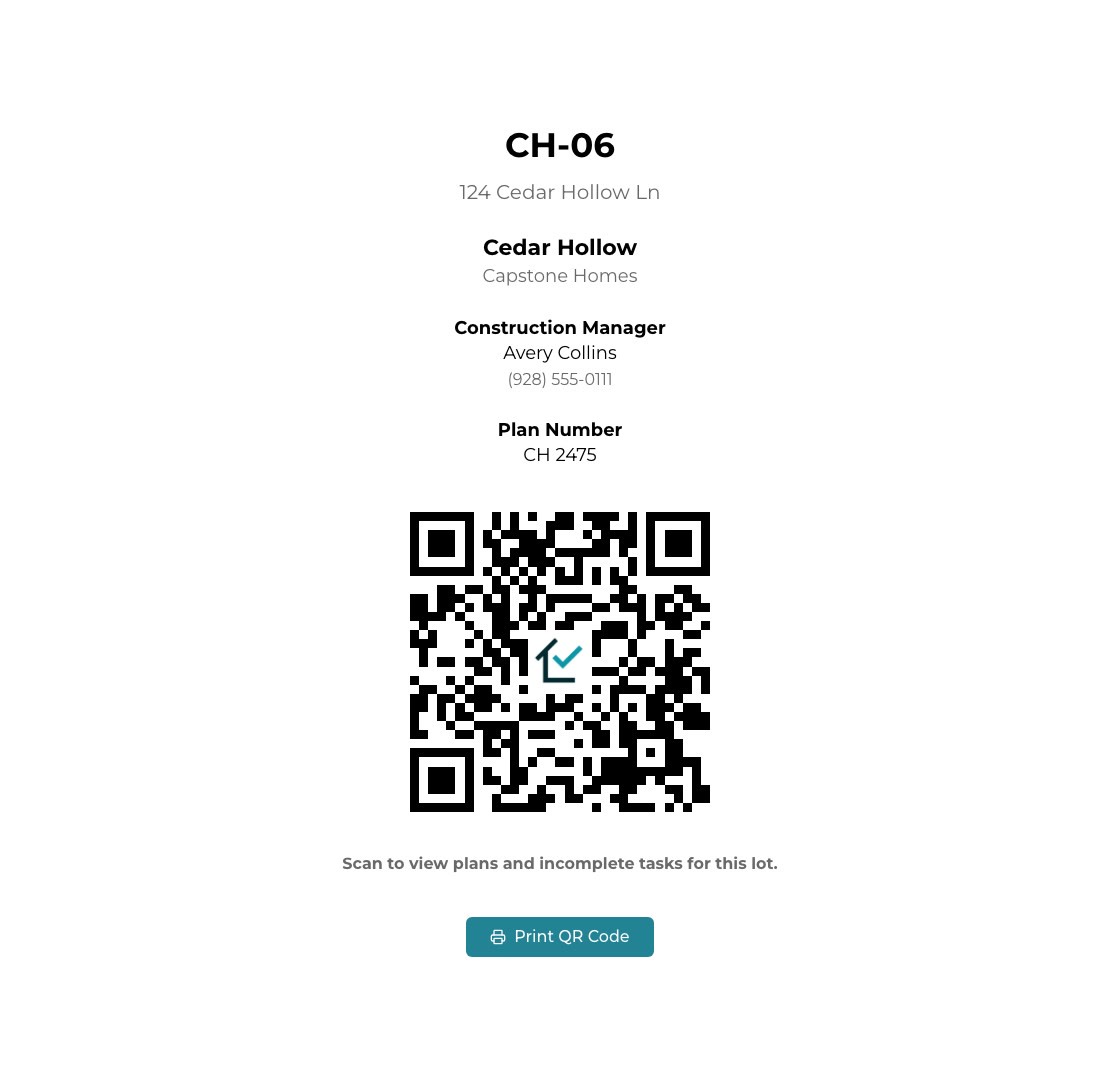
The sheet names the lot, its street address, the community and your builder name, then the Construction Manager (labeled Project Manager on the sheet) with a phone number, and the plan number when the lot has plan files.
Below that is a large QR code with the TPTM mark in the center and a plain instruction: scan to view plans and incomplete tasks for this lot. The Print QR Code button doesn't appear on the printed page.
- Short, scannable link The code carries a short link to the lot, which makes for a simpler code that is easier to scan on a job-site sheet.
- Nothing to reprint The sheet points at the lot, not at a snapshot of it. Post it once and leave it up.
Step 2
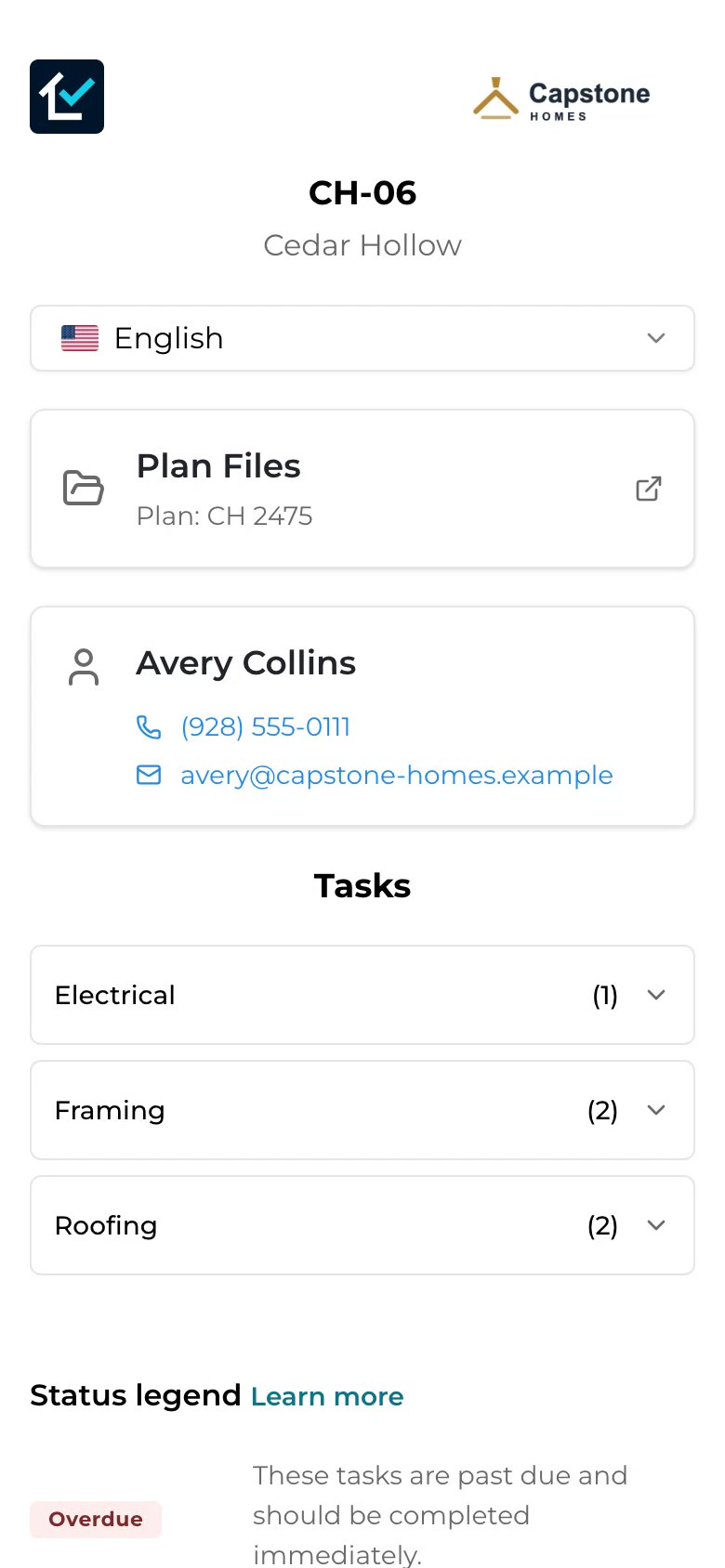
What one scan opens: the lot, on the phone.
The phone's camera opens the lot's page in the browser. There's nothing to download and nothing to sign in to, so a crew's newest hire can use it on day one.
The page shows your logo beside TPTM, the lot and community, and three things the crew needs.
- Plan Files A card that opens the lot's plan folder, labeled with the plan number. Anything you keep in that folder is a tap away on site.
- The Construction Manager Name, tap-to-call phone number and tap-to-email address, so the right person is one tap away.
- Open tasks, by trade The lot's open tasks and inspections, grouped by trade with a count on each. A crew opens its own trade and reads each task's description and location.
In their language
English or Spanish, on the same sheet.
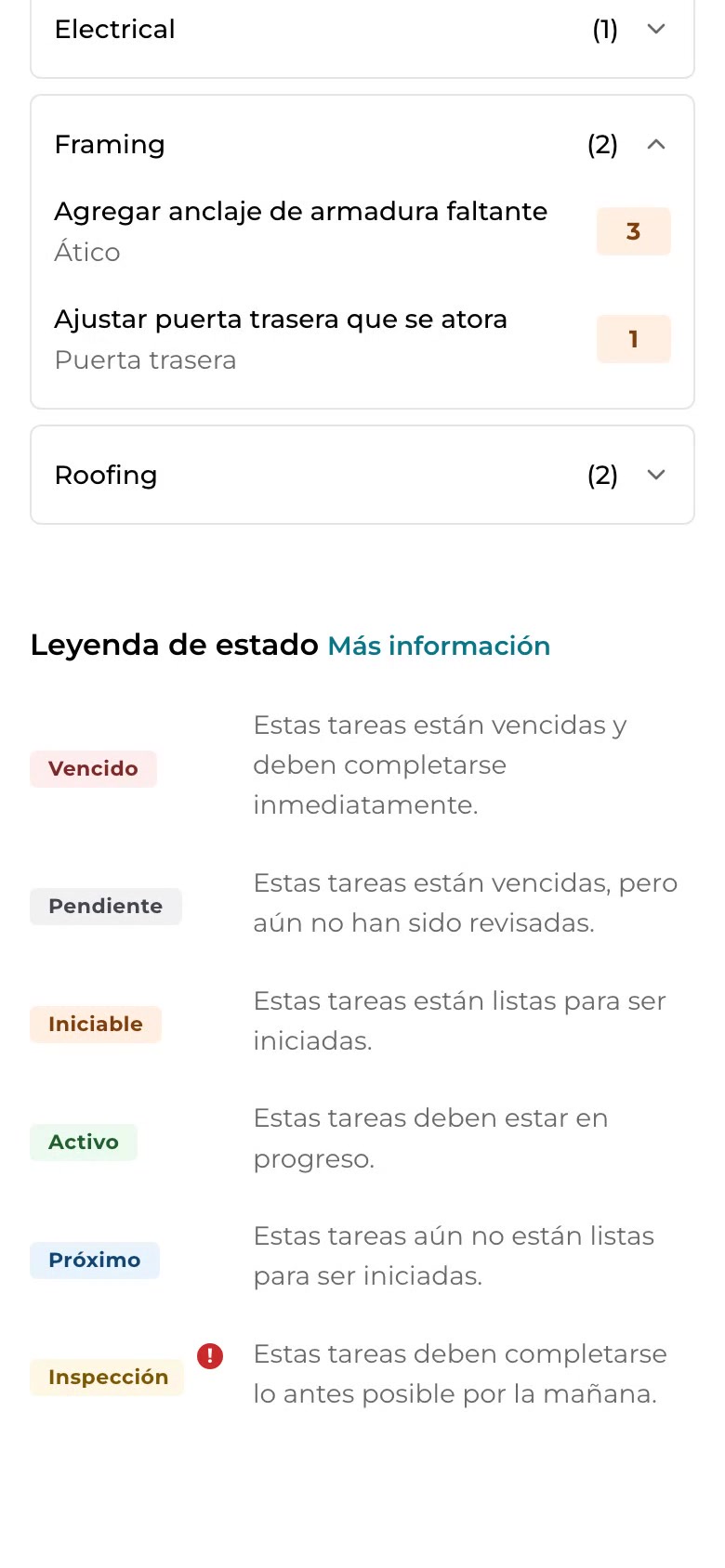
A language selector sits at the top of the page. Pick Español and the labels, the status legend and every translated task description and location switch to Spanish.
The phone remembers the choice, so the next lot that crew member scans opens in Spanish too. A phone that is already set to Spanish usually opens the page in Spanish without anyone choosing.
When you add or reword a task, the new wording is translated automatically. For a short while after it's saved, it may show No translation available until the translation arrives.
Always current
The sheet never goes stale, because the page is live.
Every scan reads the lot as it is right now. The page lists the same punch tasks and inspections your team sees on the lot page. When a Construction Manager adds a punch item, the next scan shows it, with no reprinting.
A task finished today stays on the list through the end of the day, so the crew can see it's done, then drops off. Each task carries a status color (Overdue, Pending, Startable, Active, Upcoming or Inspection), and a legend on the page explains every one.
To show plan files on site, add the folder's address to the lot once: Tools, Edit, Link to Files. The Plan Files card appears on the next scan and the sheet's instruction mentions plans.
Questions
What builders ask about this.
Do trades need an app or an account to scan the code?
No. The phone's camera opens the lot's page in the browser. There's no sign-in, no password and nothing to install.
Do I have to reprint the sheet when the punch list changes?
No. The code points at the lot's live page, so every scan shows the current open tasks and inspections. A task finished today stays visible until the end of the day, then drops off.
Can someone mark a task complete from the scanned page?
No. The scanned page is view-only. Task updates happen in TPTM, so the crew lets the Construction Manager on the page know when the work is done.
How do the plans get onto the page?
Add the lot's plan folder address once, under Tools, Edit, Link to Files on the lot page. The scanned page then shows a Plan Files card that opens that folder, labeled with the plan number.
Which languages does the scanned page support?
English and Spanish. The crew picks one from the selector at the top, and the phone remembers the choice for the next lot they scan.
Get started
Give the field a program it will actually use.
Tell us about your company and we'll show you TPTM running on homes like yours.
- Tell us about your homesTwo minutes, right here.
- See it on your communitiesA walkthrough built around how your Construction Managers and trades already work.
- Send your trades a linkNo onboarding, no sign-in. They're in.
Get started with TPTM
We'll get back to you personally.