








Work orders
Back charges without the back-and-forth.
Raise the work order on the punch item that needs it, with a not-to-exceed amount and the trade responsible. The right people hear about it the moment it exists, the Construction Manager approves it when the work is done, and purchasing sees exactly what is ready to pay.
Why it matters
A back charge nobody can explain never gets collected.
Unplanned work happens on every job: a dented wall after the HVAC rough-in, overspray on new windows, a cracked outlet cover at final. Someone has to fix it, someone has to pay for it, and very often a different trade caused it.
On most jobs that turns into a note on a clipboard, a text thread and a line on a month-end statement. By the time the charged trade sees it, nobody remembers the lot, the photo or who agreed to what, so the charge gets argued down or quietly dropped. TPTM records the work order at the moment the problem is found, on the item it belongs to, so the facts are there before anyone has a reason to argue.
- Recorded when it happens The work order is created on site, on the punch item itself, not reconstructed at the end of the month.
- A cap everyone can see Every work order carries a not-to-exceed amount, so the price is agreed before the work starts.
- One record from field to payment The same work order moves from Active to Pay or Forgiven, and every screen reads from it.
In the field
Raise it on the punch item, in seconds.
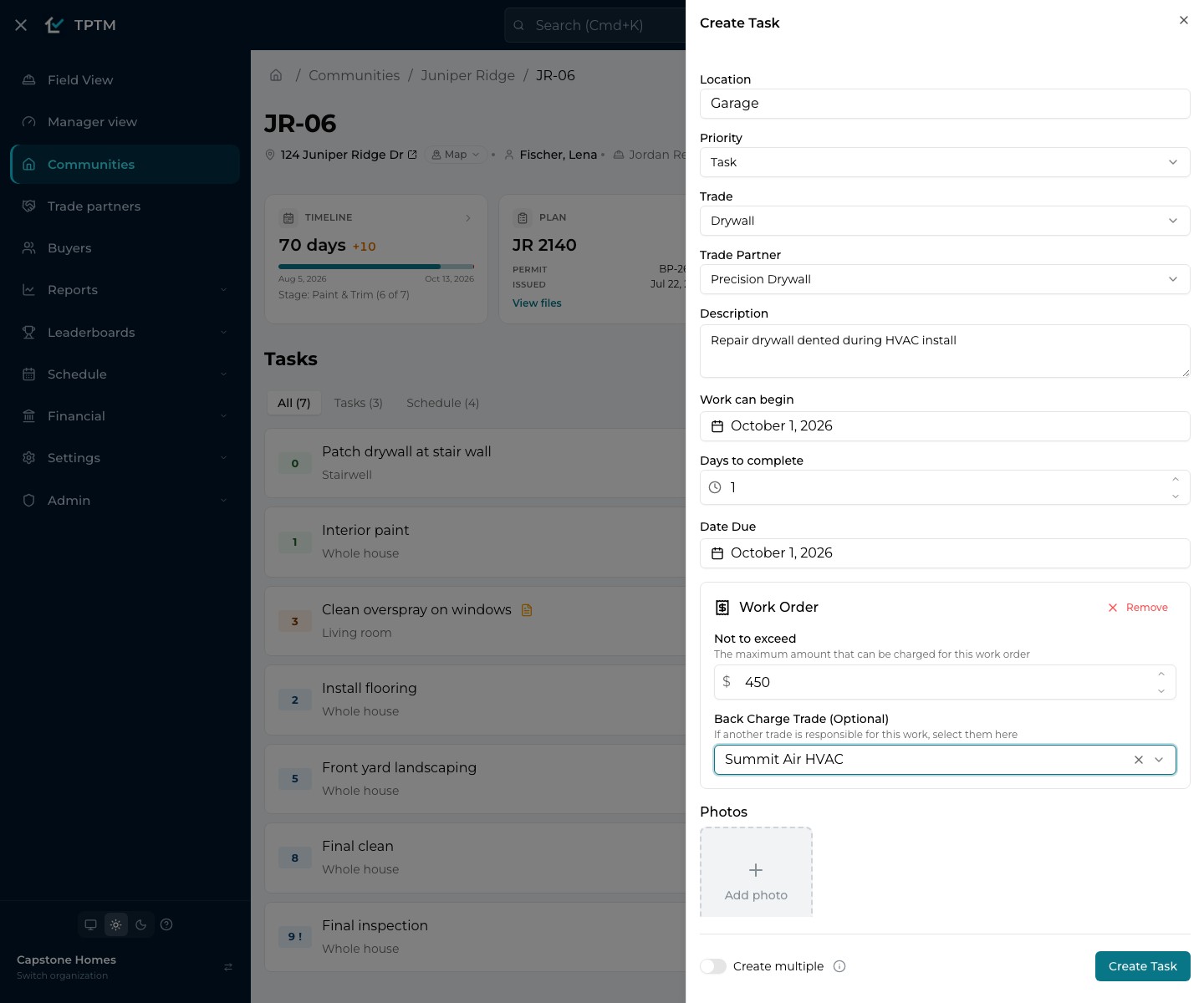
When a Construction Manager adds an item to a lot's punch list, the work order is one more tap on the same form. Pick the trade (a trade with a single partner fills the partner in for you), describe the work, then choose Add Work Order.
Two fields do the rest. Not to exceed sets the most the work can cost. Back Charge Trade, which is optional, names the trade partner responsible when someone else caused the problem, with a search box that finds them as you type. Create the item and the work order exists with it, numbered automatically from the lot's name.
- Works on a phone The same form runs in the browser on a phone, with finger-sized pickers, so it gets done on site rather than back at the truck.
- Numbered for you Each lot keeps its own sequence (JR-06_WO_001, JR-06_WO_002…), so a work order's number tells you where it came from.
- Easy to spot later Items with a work order carry a work-order icon on the lot's task list, and the item's details show the amount and the back-charge trade.
Everyone hears about it
The charged trade knows the day it happens.
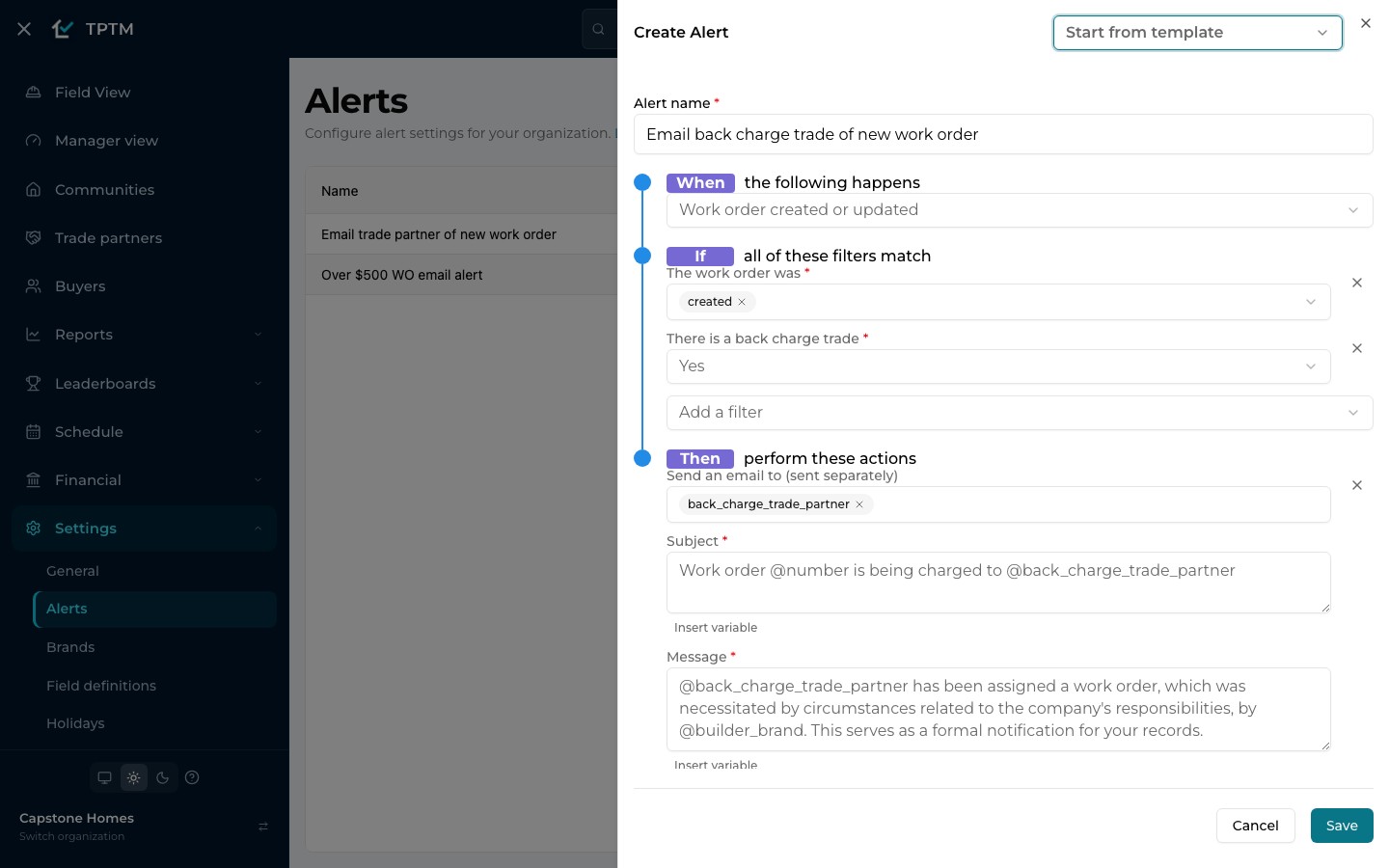
Who gets told is decided once, by an admin, in Alert Settings. An alert watches for a work order being created or updated, checks the filters you set, and sends an email to the people you name: the trade doing the work, the back-charge trade, the Construction Manager or any address you type.
You don't start from a blank page. Templates cover the common cases: email the back-charge trade about a new work order, email the assigned trade, email both when a work order changes, flag any work order over $500, and tell purchasing when a work order is ready to be paid. Subjects and messages fill in the work order's own details, such as its number, the trades and the not-to-exceed amount.
- Filters that match how you work Created or updated, whether there is a back-charge trade, a not-to-exceed amount above a threshold, or a change to a particular status.
- A link to the real document Each email links to the work order itself, so nobody is working from a forwarded screenshot.
For the trade
A clean work order with nothing to argue about.
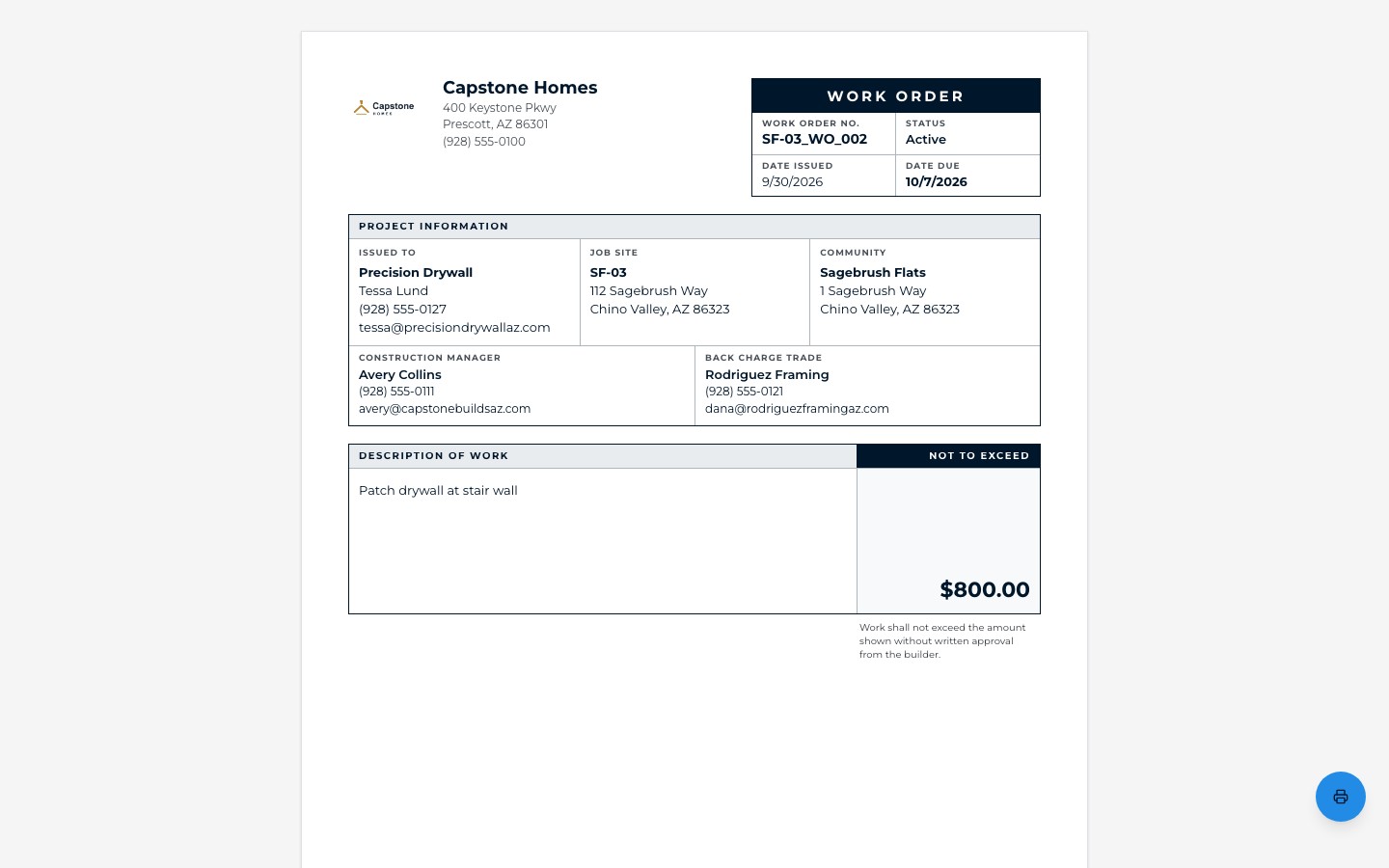
The link opens a printable, letter-size work order under your brand's logo, with no login needed. It shows the number, status, date issued and date due; who it's issued to; the job site and community; the lot's Construction Manager with a phone and email; the back-charge trade; the description of the work; and the not-to-exceed amount, with a note that the work can't go over it without your written approval.
The trade being charged also sees it in their own portal. The Back charges tile totals every active work order charged to them and says how many there are, right next to their schedule, so a charge is never a surprise on a statement.
- Always the current contact The printout shows the lot's Construction Manager today, so a reassigned lot never sends a trade to the wrong person.
- Print or save as PDF One button prints it or saves it as a PDF for anyone who still wants paper.
Approval and payment
Approved when it's done, ready for purchasing.
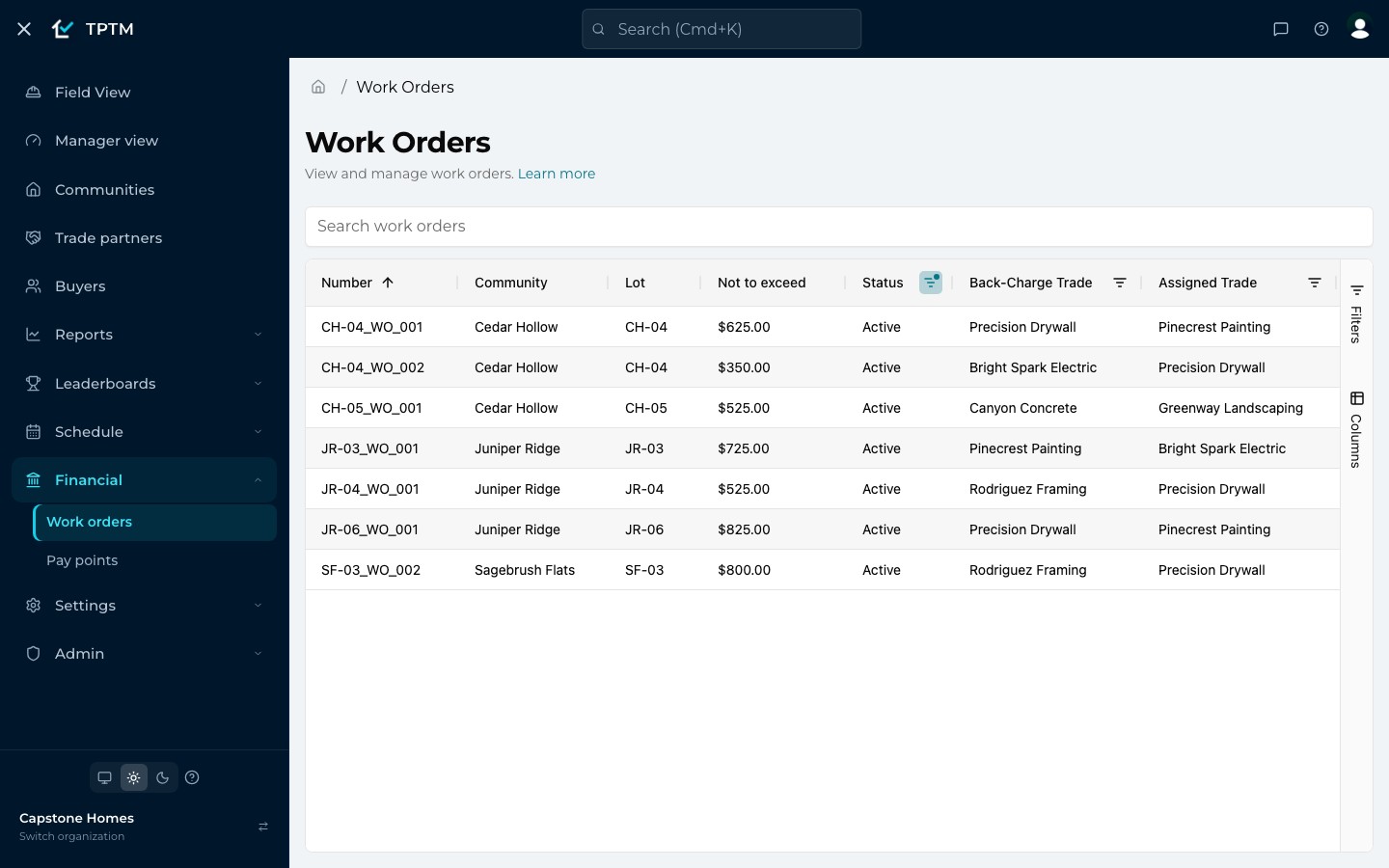
Every work order lives in one list under Financial. It opens on Active work, and a search box finds any of them by number, lot, community, status, amount, back-charge trade or task. Click a row to see the whole work order; the View button opens the printable copy.
When the repair is done, the Construction Manager opens the work order and sets its status to Pay, or to Forgiven if the charge is being waived and nobody will be billed. Moving to Pay stamps the pay date. Purchasing filters the list to Pay and has exactly what's approved, and because filters are saved in the page's web address, that view can be bookmarked or sent to a colleague.
- Three clear statuses Active while the work is open, Pay once it's approved for payment, Forgiven when the charge is waived.
- Your own fields Add company dropdowns such as Cost Type or Variance Code in Settings, make them required, and ask for a note on the options that need one.
- The same list on a phone On a small screen each work order becomes a card, with the same filters and search.
For leadership
See who keeps causing the rework.
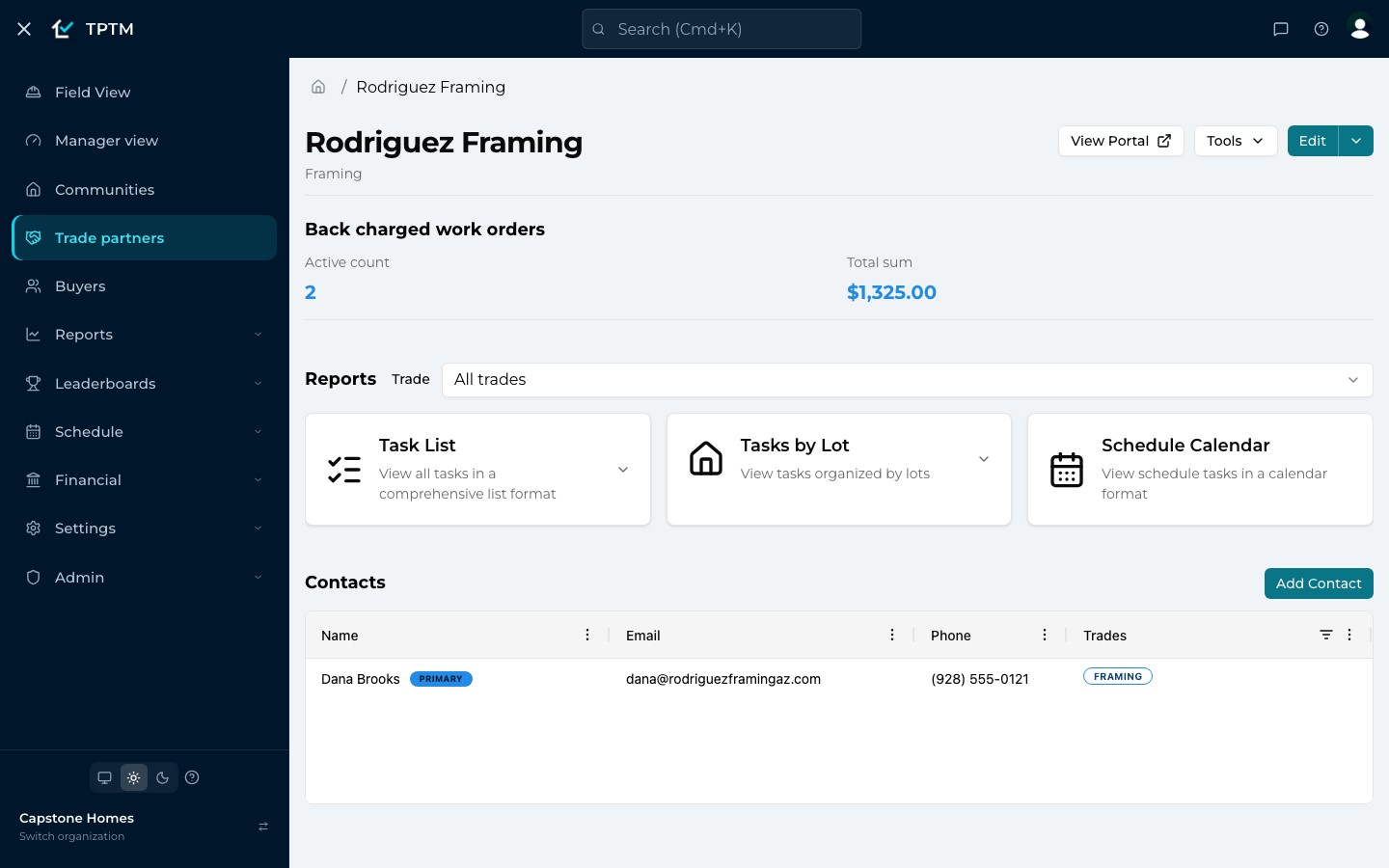
Because every back charge is recorded against a trade partner, the pattern shows itself. Each trade partner's page carries a Back charged work orders summary: how many are active and what they add up to, exact to the cent.
The Work Orders Created leaderboard ranks your Construction Managers by the work orders they raised over the last 30, 60 or 90 days or a custom range, so you can see who is recording the unplanned work on their lots.
- Facts for the trade conversation Talk to a trade about damage with the count, the total and every work order behind it.
- One trade, one rule Once a task has a work order its trade is locked, so the work order stays with the trade it was raised for.
Questions
What builders ask about this.
Is a trade billed as soon as a work order is created?
No. A work order starts as Active while the work is open. It is only ready for payment once someone on your team moves it to Pay, and if you change it to Forgiven the charge is waived and nobody is billed.
Do trades need a TPTM account to see a work order?
No. The emails link to a printable work order that opens without a login, and a back-charged trade also sees the total of its active back charges on its own trade partner portal.
Who gets notified, and how?
An admin sets that up once in Alert Settings. Alerts send email when a work order is created or updated, filtered by things like status, amount or whether there is a back-charge trade, to the trades involved, the Construction Manager or any address you add.
What does 'Not to exceed' mean?
It's the cap on what the work order can cost, set when the work order is created. The printed work order reminds the trade that the work can't go over it without your written approval.
Can I track our own cost codes on a work order?
Yes. Work order custom fields let an admin define dropdowns, such as Cost Type or Variance Code, that appear on every work order. They can be required, and an option can ask for notes. They stay in TPTM and aren't printed on the trade's copy.
Can superintendents raise work orders from a phone?
Yes. TPTM runs in the phone's browser, and adding a work order is part of the same form used to add a punch item on site.
Get started
Give the field a program it will actually use.
Tell us about your company and we'll show you TPTM running on homes like yours.
- Tell us about your homesTwo minutes, right here.
- See it on your communitiesA walkthrough built around how your Construction Managers and trades already work.
- Send your trades a linkNo onboarding, no sign-in. They're in.
Get started with TPTM
We'll get back to you personally.