








For Purchasing & Accounting
Pay for work that's done and verified.
When a Construction Manager confirms the work in the field, it shows up for you as ready to pay. No phone calls to find out if framing is really finished — and when it isn't, the trade already knows why.
Where the answer comes from
The yes comes from the person standing in the house.
Every trade payment starts with the same question: is the work really done? In most builders that answer lives in a Construction Manager's head, so accounting calls, texts and waits — or pays on faith and sorts it out later.
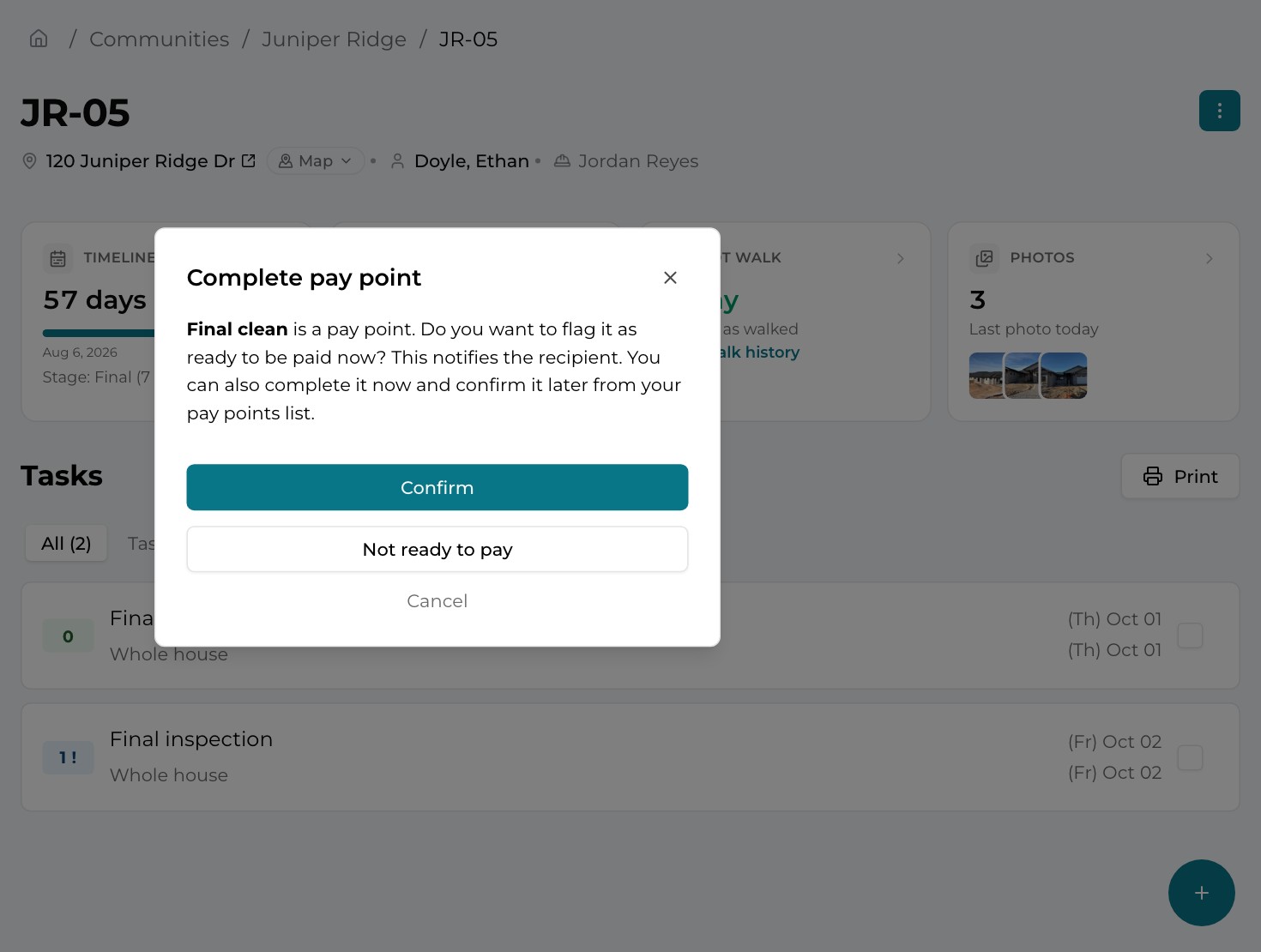
TPTM moves that answer to the moment the work is checked off. The milestones you pay on are flagged as pay points on your schedule templates, so every lot built from a template carries them automatically. When a Construction Manager ticks one complete, TPTM stops and asks: is this ready to be paid?
- Confirm Completes the task and marks the pay point ready to pay. It appears on accounting's list straight away.
- Not ready to pay Completes the task but holds the payment, and asks why — more on that below.
- Cancel Nothing changes. The checkbox never ticks on its own.
When the answer is no
Not ready? The trade hears why, in writing.
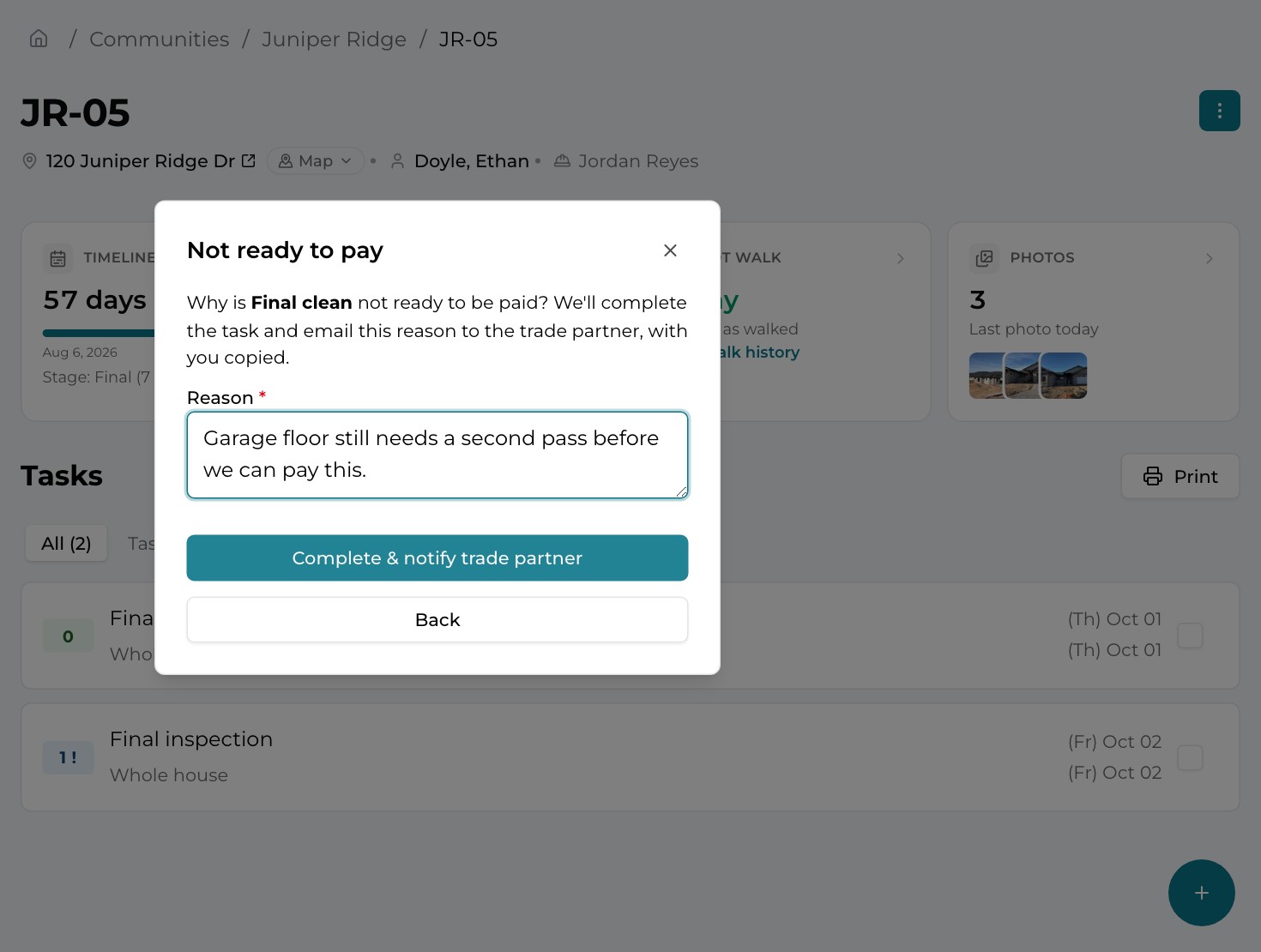
Holding a payment is a decision, so TPTM treats it like one. When a Construction Manager who can approve payment chooses Not ready to pay, they have to give a reason before the task is completed.
That reason is emailed to the trade partner, with the Construction Manager copied, so the trade can reply to the person who made the call. The email names the lot, the community, the pay point and the completion date, so nobody has to guess which job it means.
- No silent holds The trade learns the payment is waiting — and why — the same day, instead of finding out when the check doesn't come.
- A record, not a phone call The reason is in writing, in the trade's inbox and the Construction Manager's, where both sides can find it later.
Nothing waits on memory
Unconfirmed pay points come looking for you.
Sometimes the work is finished before anyone can sign off on it. Those pay points don't disappear into a list nobody opens.
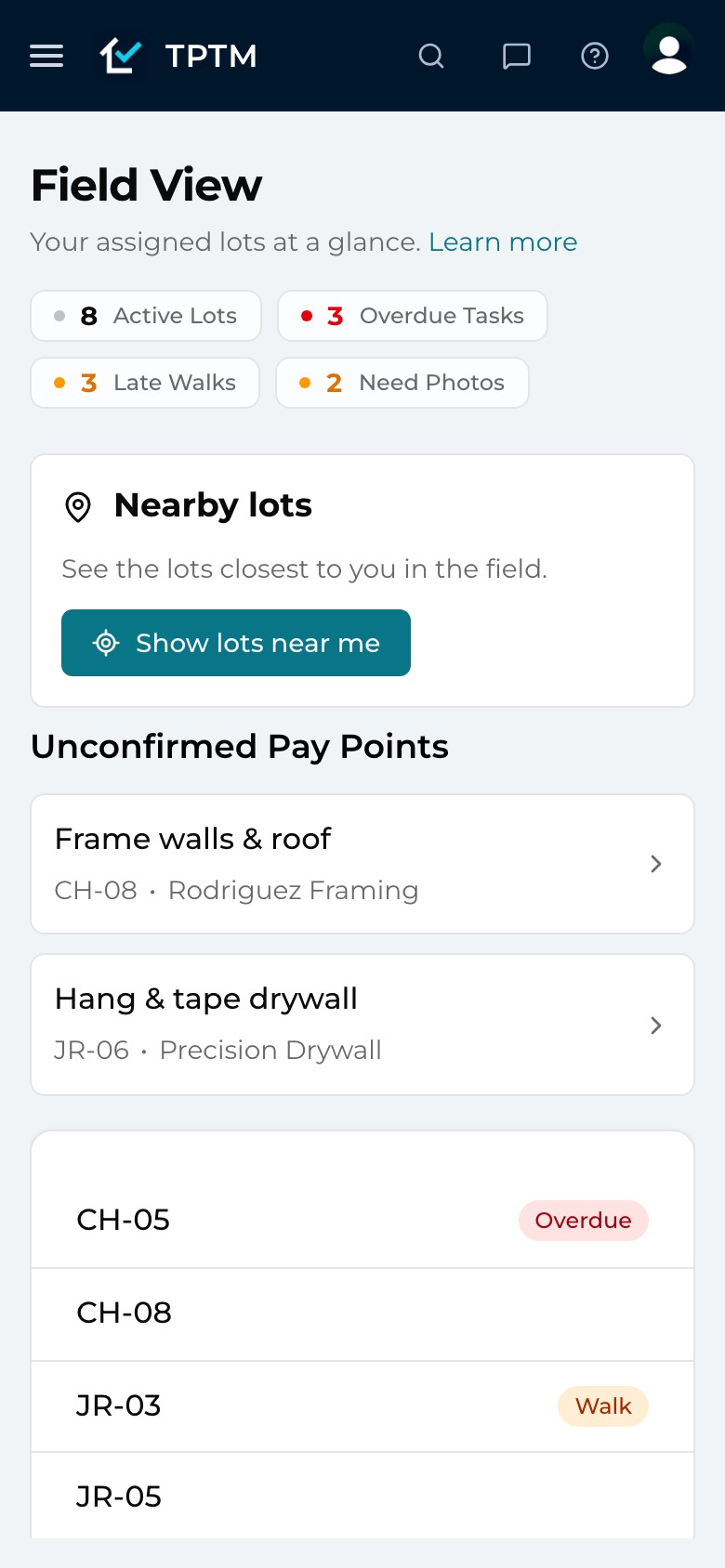
Every Construction Manager's Field View — the screen they open each morning, on a phone or a laptop — shows an Unconfirmed Pay Points section whenever anything is waiting on them. One tap opens Mark ready to pay. Once it's confirmed, the row drops off their list and lands on yours.
- For Construction Managers A short, self-clearing list of payments only they can release — it hides itself when there's nothing to do.
- For accounting Fewer "did you ever look at this?" messages, because the reminder is built into the field's daily screen.
Accounting's list
One list of what's ready to pay.
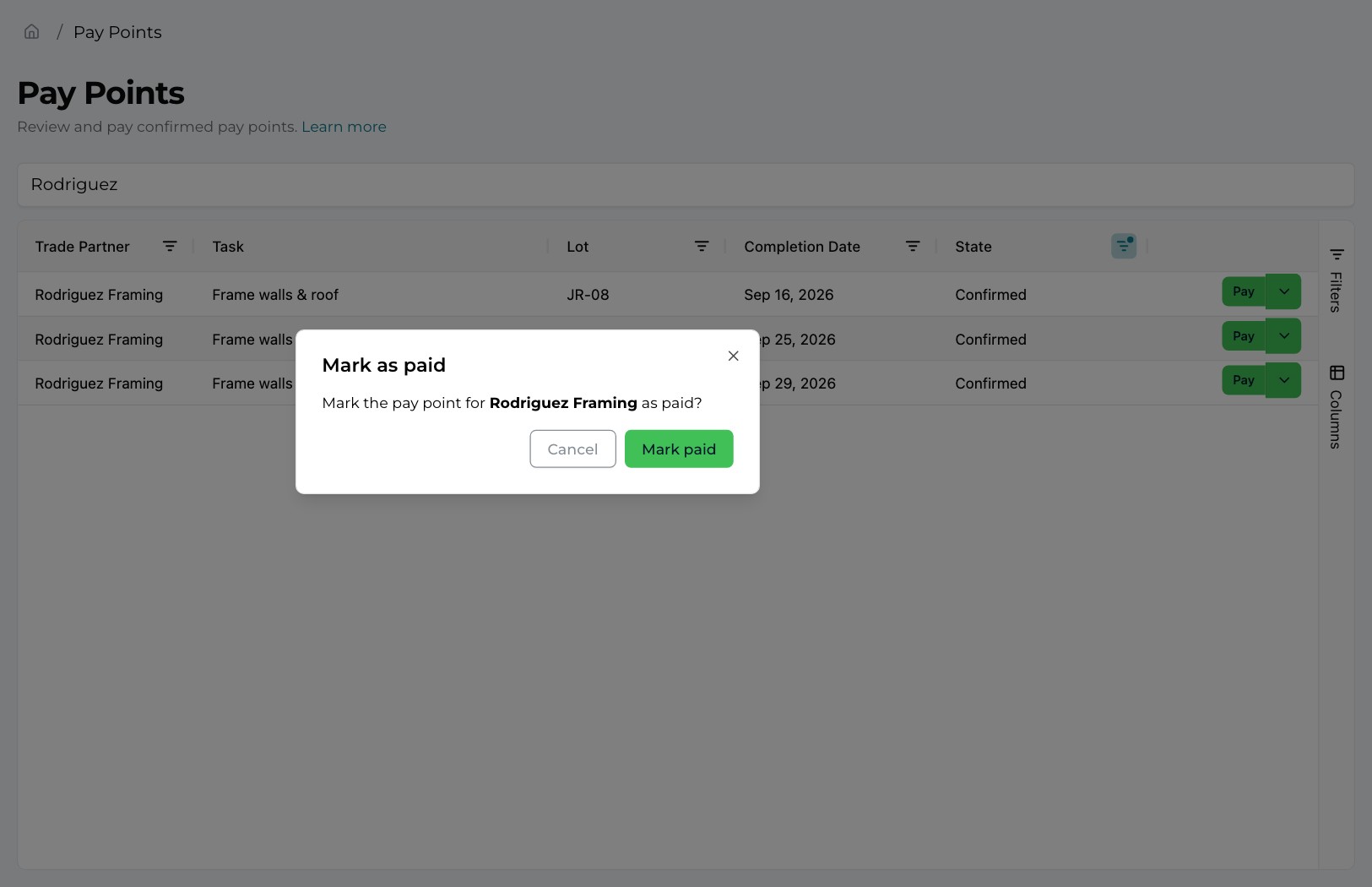
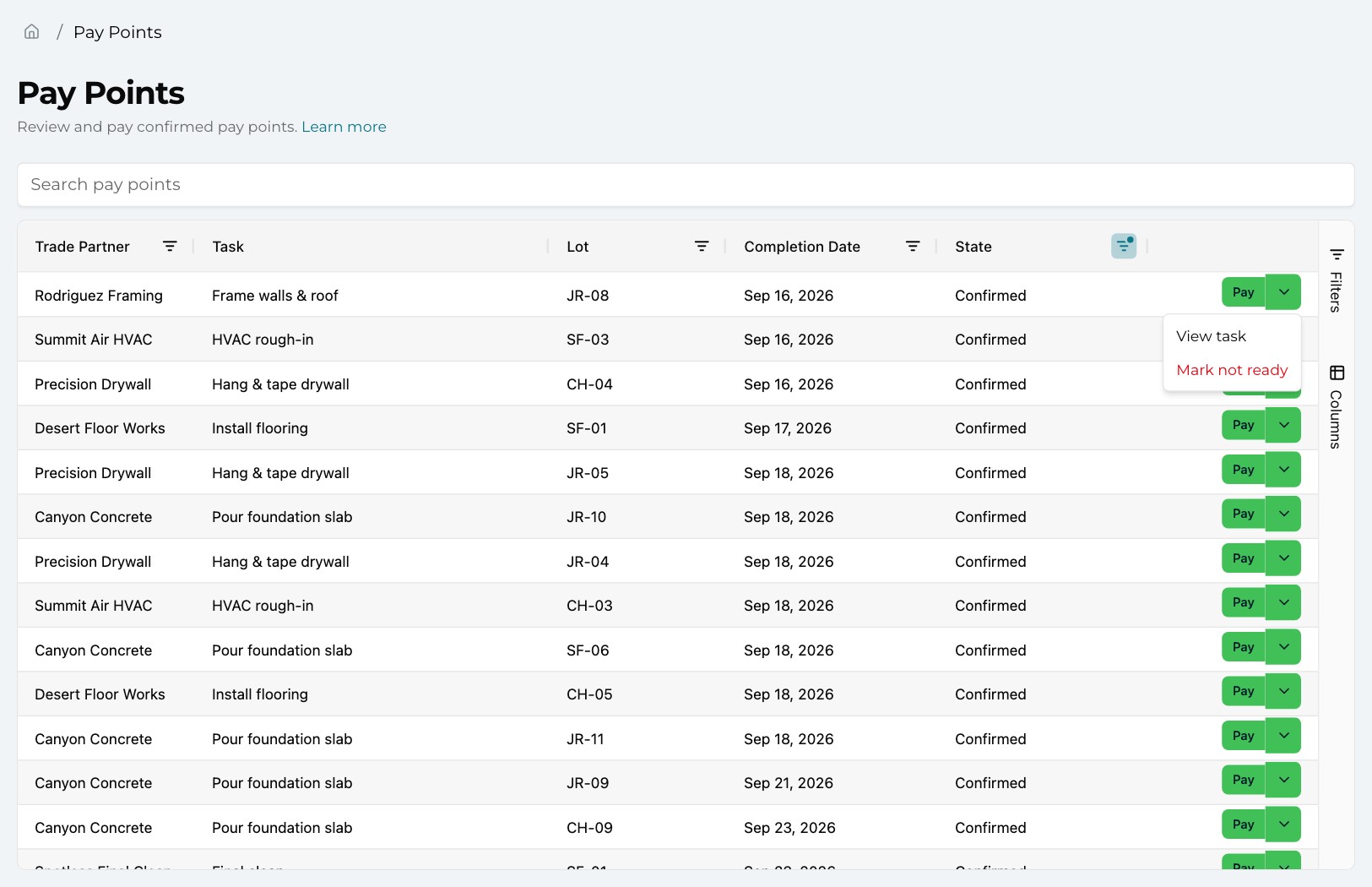
The Pay Points list under Financial is where accounting works. It opens on confirmed pay points only, oldest first, so whatever has waited longest is at the top — each with its trade partner, task, lot and completion date.
Search by trade partner, task or lot to pull up one trade's payments before a check run. Pay asks you to confirm before anything is recorded, and the pay point moves to Paid.
- Every state, when you need it Filter by state — Pending, Unconfirmed, Confirmed, Paid — plus trade partner, lot and completion date.
- Views you can share Filters and sorting are saved in the page's web address, so "everything confirmed for Rodriguez Framing" is a link you can bookmark or send.
- On a phone, too The same list becomes one card per pay point, with the same filters and the same Pay button.
Controls, not bottlenecks
Separate permissions. Every step reversible.
Completing work, approving payment and recording payment are three different permissions in TPTM. You decide which roles hold each one — so field staff can check off work all day without being able to approve or record a payment, and accounting can record payments without approving them.
Mistakes happen, so every step can be walked back — and each one asks first. Mark not ready sends a confirmed pay point back to Unconfirmed, Mark unpaid sends a paid one back to Confirmed, and View task opens the work behind any payment.
- Task — update Complete a pay-point task, or un-complete it.
- Pay Point — confirm Mark a pay point ready to pay, or take that back.
- Pay Point — pay Mark a pay point paid, or mark it unpaid.
Work orders & back charges
Unplanned work reaches you with the charge attached.
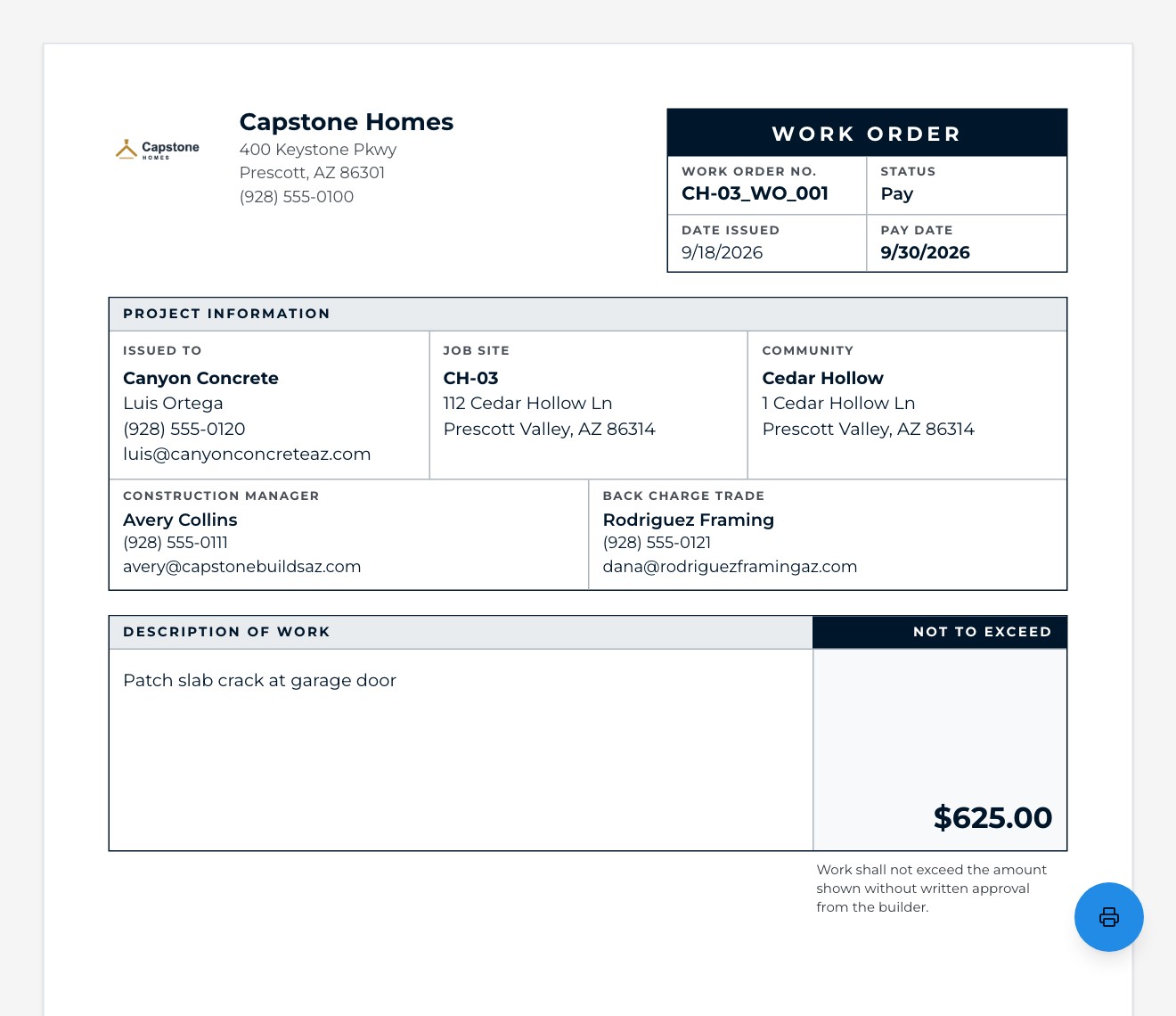
Repairs and extra work don't fit the schedule, so they come through as work orders — each with a not-to-exceed amount, the trade doing the work and, when someone else caused it, a back-charge trade.
When a work order moves to Pay, it's approved and ready for purchasing. An alert can email your purchasing team the moment that happens, and the printable work order shows the pay date, the amount and who is being charged. The trade being back-charged sees the total against them on their own portal.
- Active, Pay, Forgiven Three statuses, filterable and shareable by link — including by back-charge trade.
- "WO can be paid" alert A ready-made alert template emails whoever you choose when a work order is set to Pay.
- Trades see their back charges The trade partner portal shows a Back charges total for their active work orders — no surprises at payment time.
Questions
What builders ask about this.
Does TPTM send the payment to the trade?
No. You pay through your own accounting process, exactly as you do today. TPTM tells you what is verified and ready to pay, and records it as paid once you have — so the field, the office and the trade are all looking at the same answer.
How does a milestone become a pay point?
You tick a Pay Point box on the line items of your schedule templates. Every lot built from that template — one at a time or with the batch scheduler — gets those pay points automatically, starting as Pending until the work is complete.
What happens when a Construction Manager says the work isn't ready?
They complete the task but choose Not ready to pay, and must give a reason. TPTM emails that reason to the trade partner with the Construction Manager copied, and the pay point waits as Unconfirmed on their Field View until it's confirmed.
Can someone check off work without being able to approve payment?
Yes. Completing a task, confirming a pay point and marking it paid are separate permissions, so you decide which roles can do each one.
What if a pay point is confirmed or paid by mistake?
Every step can be reversed, and each asks for confirmation first: Mark not ready sends a confirmed pay point back to Unconfirmed, and Mark unpaid sends a paid one back to Confirmed.
How does purchasing find out a work order can be paid?
Work orders set to Pay appear in the Work Orders list under the Pay status, and an alert — there's a ready-made "WO can be paid" template — can email your purchasing team the moment a work order is set to Pay.
Get started
Give the field a program it will actually use.
Tell us about your company and we'll show you TPTM running on homes like yours.
- Tell us about your homesTwo minutes, right here.
- See it on your communitiesA walkthrough built around how your Construction Managers and trades already work.
- Send your trades a linkNo onboarding, no sign-in. They're in.
Get started with TPTM
We'll get back to you personally.