







Everything included
Every report your team needs. Out of the box.
Trade partners, the field, leadership and accounting each get reports cut for the job in front of them — all read from the same live schedule, so nobody works from a stale spreadsheet and every number agrees. There is nothing to build, export or refresh overnight.
Why it matters
One live schedule, cut for every person who needs it.
Too often, reporting is somebody's afternoon: pull the schedule, paste it into a spreadsheet, filter it for each trade, email it, and repeat tomorrow because something moved. By the time it lands, it is already out of date — and each copy tells a slightly different story.
In TPTM there is no copy. Every report reads the schedule, the tasks, the walks and the photos your team is already keeping in TPTM, at the moment someone opens it. Change a date on a lot and the trade's calendar, the production report and the leadership numbers all reflect it the next time they are opened.
- Nothing to build. The reports come with TPTM. There is no report designer to learn and no template to maintain.
- Nothing to send. Trade partners get a daily email and text that link to their own reports, and anyone can print or save a report as a PDF when paper is what the job needs.
- Every number agrees. Because every report reads the same records, the trade's calendar, the Construction Manager's lot page and the VP's production report can't drift apart.
For trade partners
Your trades see their week without a login or a phone call.
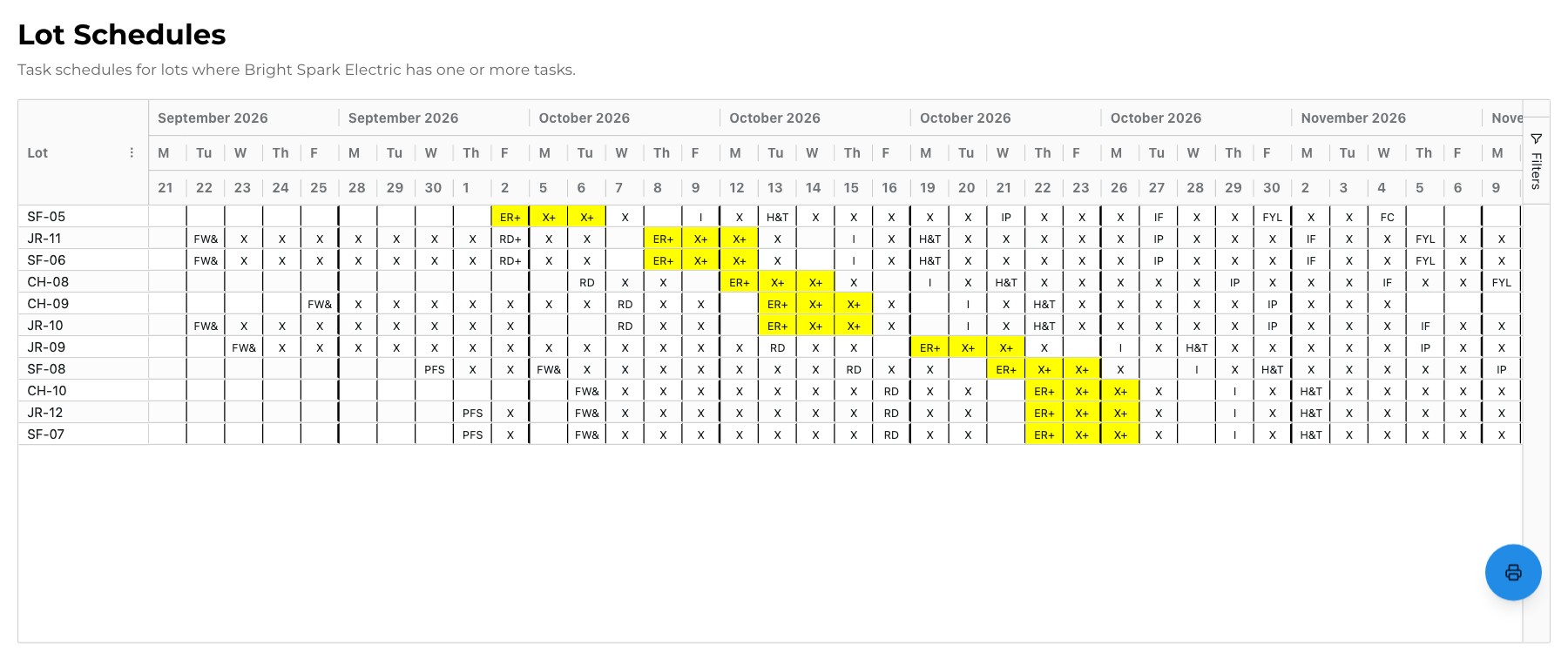
Every trade partner has a portal link — no account, no password, no app to install. Its Reports section opens three reports, and whichever trade the partner picks on the portal is already applied to the report they open.
While a trade partner has unfinished work on an active lot, TPTM sends their contacts a daily email, and a text when a phone number is on file, linking straight back to it. The reports are view-only and always current, so the crew is never working from last week's list.
- Schedule Calendar. One row per lot, the lot they're needed on soonest at the top, weekday columns grouped into weeks. Their own tasks are colored — one color per task type — and other trades' work on the same lots stays visible, so they can see what has to finish before they roll.
- Task List. Every unfinished task due in the next four weeks, across every lot, with dates, lot, trade and type. Narrow it to tasks, scheduled work, or both.
- Tasks by Lot. The same open work grouped by community and then by lot, for the partner who plans lot by lot rather than by date.
- You decide what they see. In Settings → Reports you can add up to six lot details to the calendar — such as Projected Close, Target Close or Build Days — and choose exactly which trade partners get them. Everything starts off.
For the field
Paper when the job needs paper, history when it needs the story.
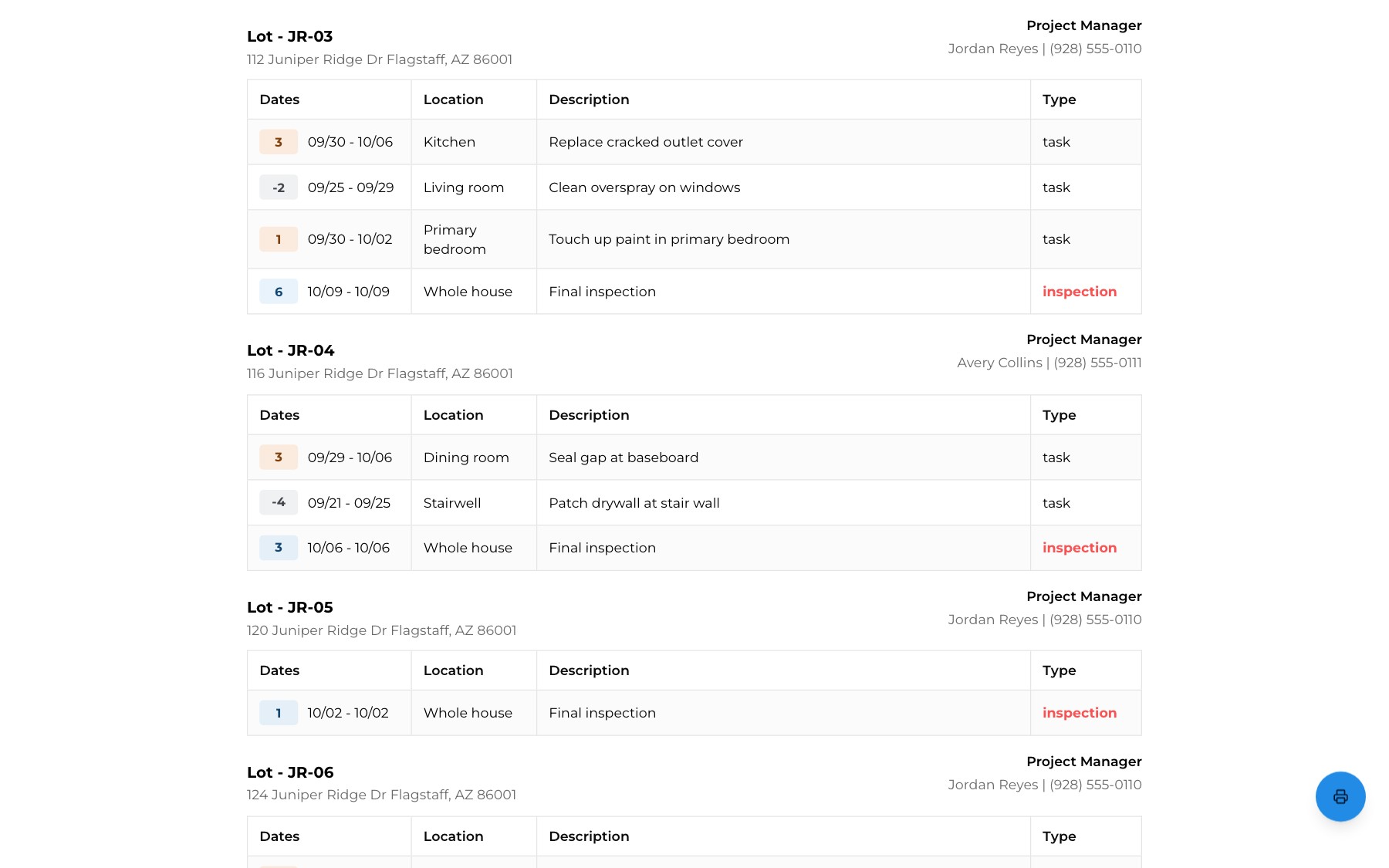
Construction Managers and superintendents get the reports they reach for on site. From any community, Print tasks produces a clean list of open work lot by lot — each lot's address and its project manager's name and number at the top, and every task's dates and location underneath.
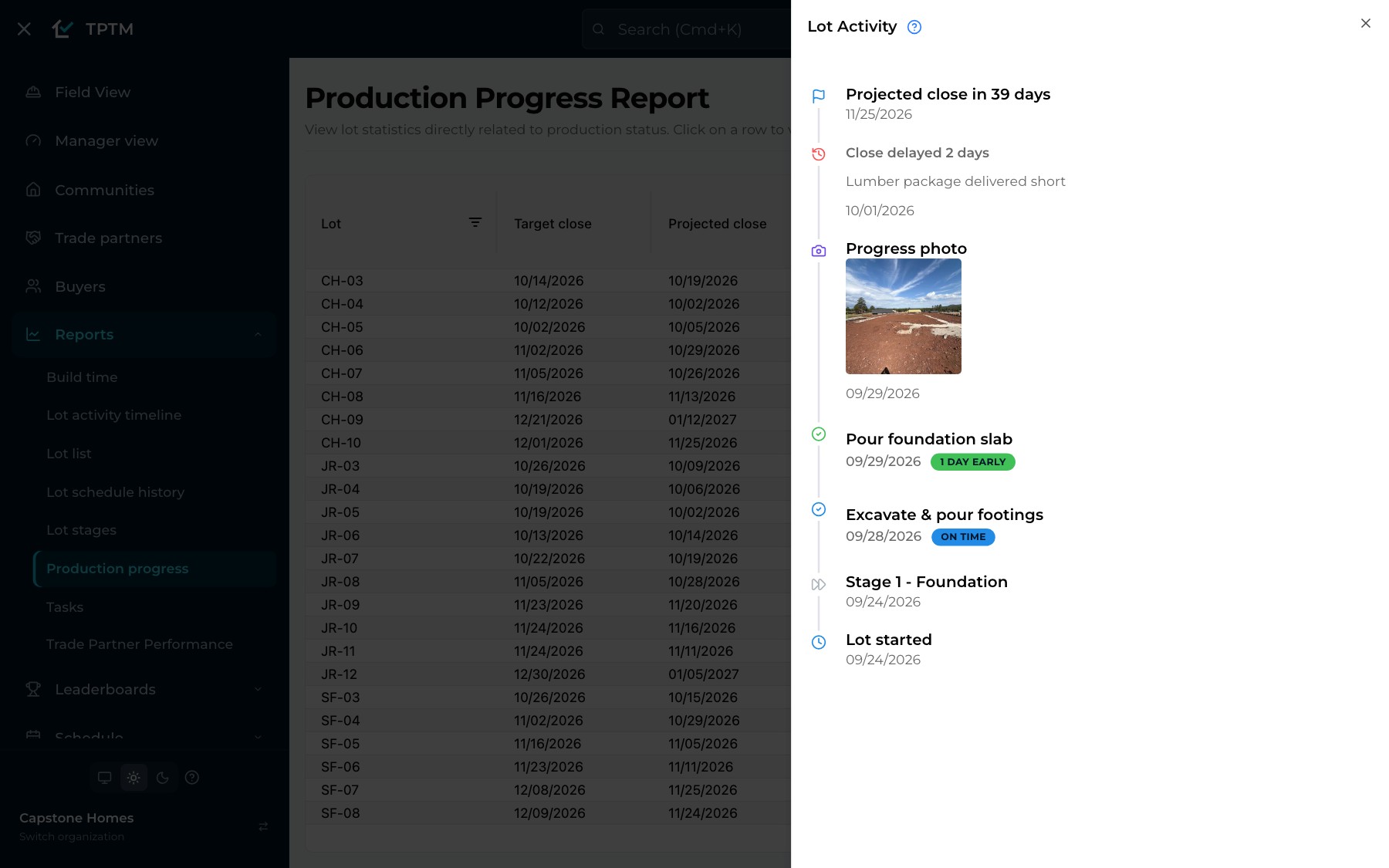
When the question is "what happened on this lot?", the Lot Activity timeline answers it in one place: when the lot started, each stage it reached, holds, every change to the projected close with its explanation, completed tasks marked early, on time or late, and progress photos.
- Share progress without an account. The Community Timeline Portal is a read-only link to every lot's build timeline in a community — for anyone outside your team who needs to follow along.
- Explain every delay. When a projected close is pushed later, the timeline records it and asks for the reason, so the explanation is there when leadership asks.
- Keep stages honest. The Lot schedule history report shows every scheduled task on a lot and lets you assign critical-path stages one at a time or all at once from a schedule template — then print it.
Production
Where every lot stands, and how long it has been there.
The Production Progress report puts every lot on one screen: its target close, its projected close, the stage it's in now and how many working days it has spent there, the stage before it, and the most recent schedule-change note. Click any row and the lot's full activity timeline opens beside it — no hunting through screens.
The Lot Stage report shows the last 26 weeks plus this one for every active lot: the stage each lot had reached by the end of each week. Cells change color the longer a lot sits at the same stage, and weeks spent on hold are marked, so a lot that has stalled stands out at a glance.
- Stalls are visible. Two, three, four or more weeks at the same stage each read differently on the Lot Stage report — and hovering a week shows the stage, when it started and any hold that overlapped it.
- Slips are explained. The last schedule-change note sits right on the Production Progress row, so the answer to "why did this move?" is already there.
- Working days, not calendar days. Stage durations skip weekends and the holidays you have set, so a long weekend never makes a lot look late.
Schedules and trade performance
See the whole build, or one trade partner's slice of it.
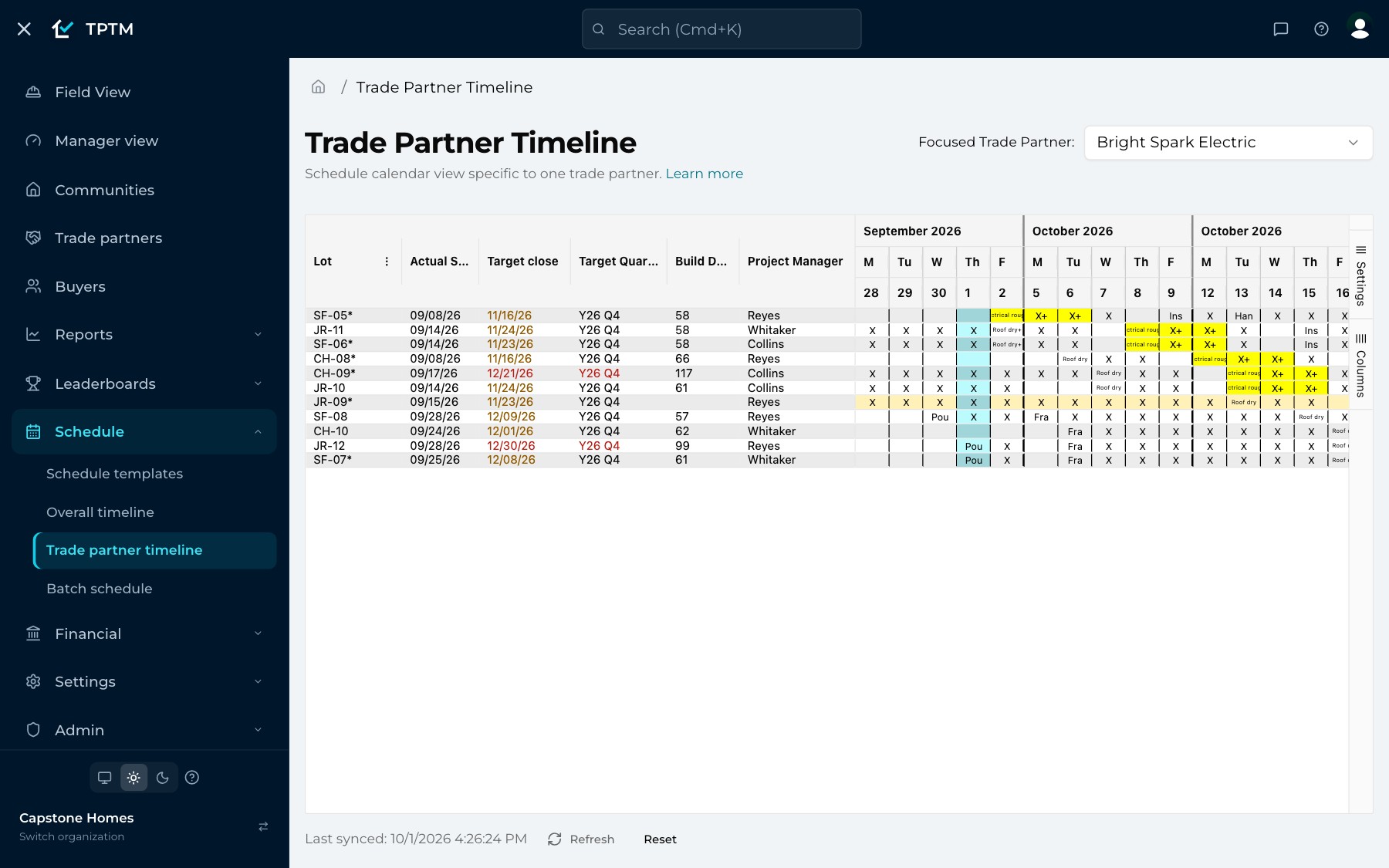
The Overall timeline lays every lot out week by week with its actual start, projected close, target close and quarter, build days and project manager beside it — and prints. The Trade partner timeline focuses the same view on one partner, so you see exactly the lots and days that partner is carrying before you call them.
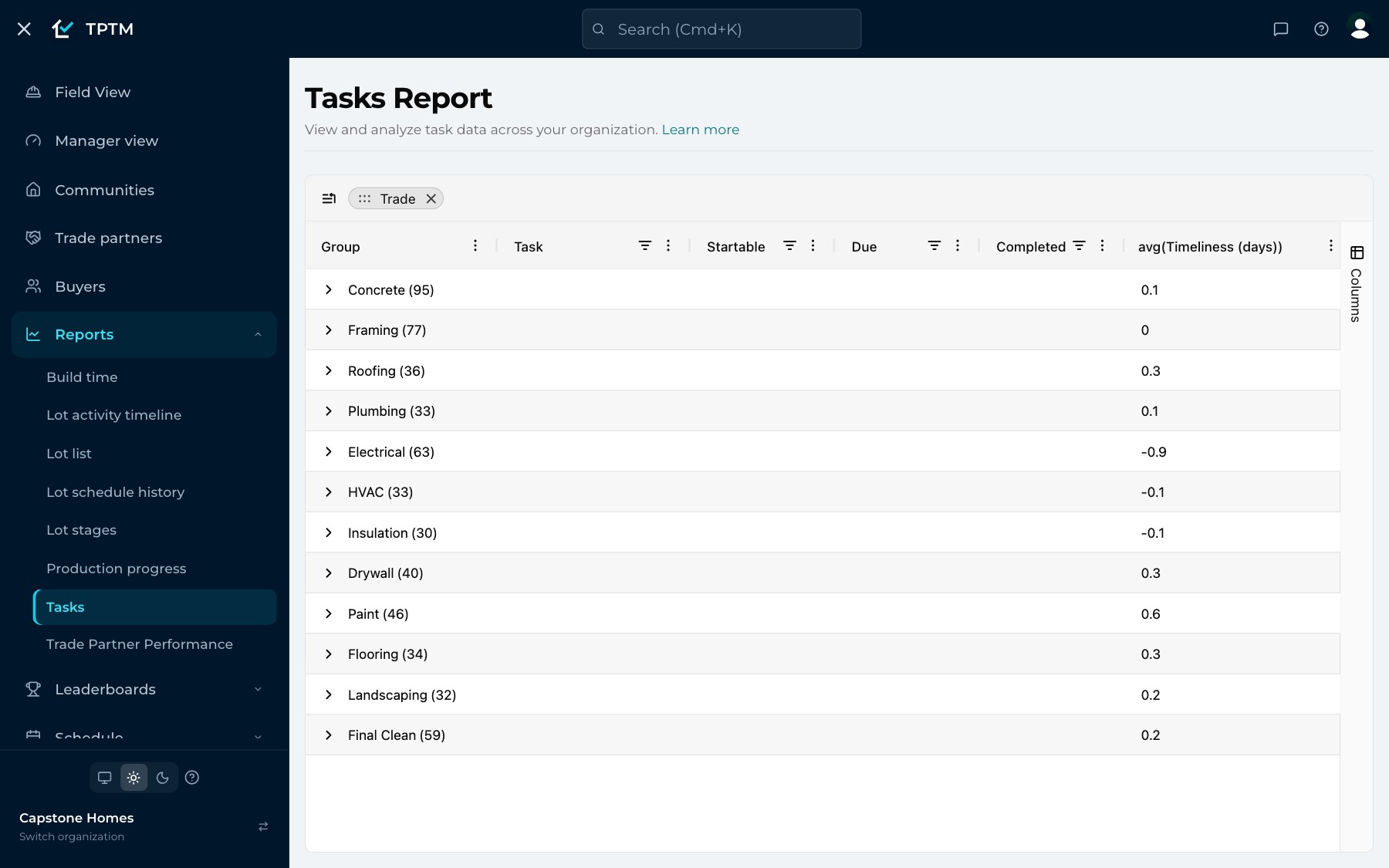
The Tasks Report lists every task across the company in one table you can filter and group by trade, task type, lot or community. Each task shows how many working days early or late it finished, and each group shows the average — a quick, honest read on which trades are keeping pace.
- Target dates in color. On the timelines, a target close turns amber as the projected close closes in on it and red once it has passed, and the target quarter shows whether the lot is running early or late against it.
- One trade partner, in depth. The Trade Partner Performance report shows a single partner's completed-task timeliness over 30, 60 or 90 days, or a custom range.
For leadership and accounting
Build times, pay points and work orders — without asking the field.
Leadership gets the Build Time report — calendar days for every lot, broken into the overall build and its phases, with company-wide averages at the top and hold time taken out — alongside Manager view, the Construction Manager and trade leaderboards, and an optional daily email listing every lot whose projected close moved.
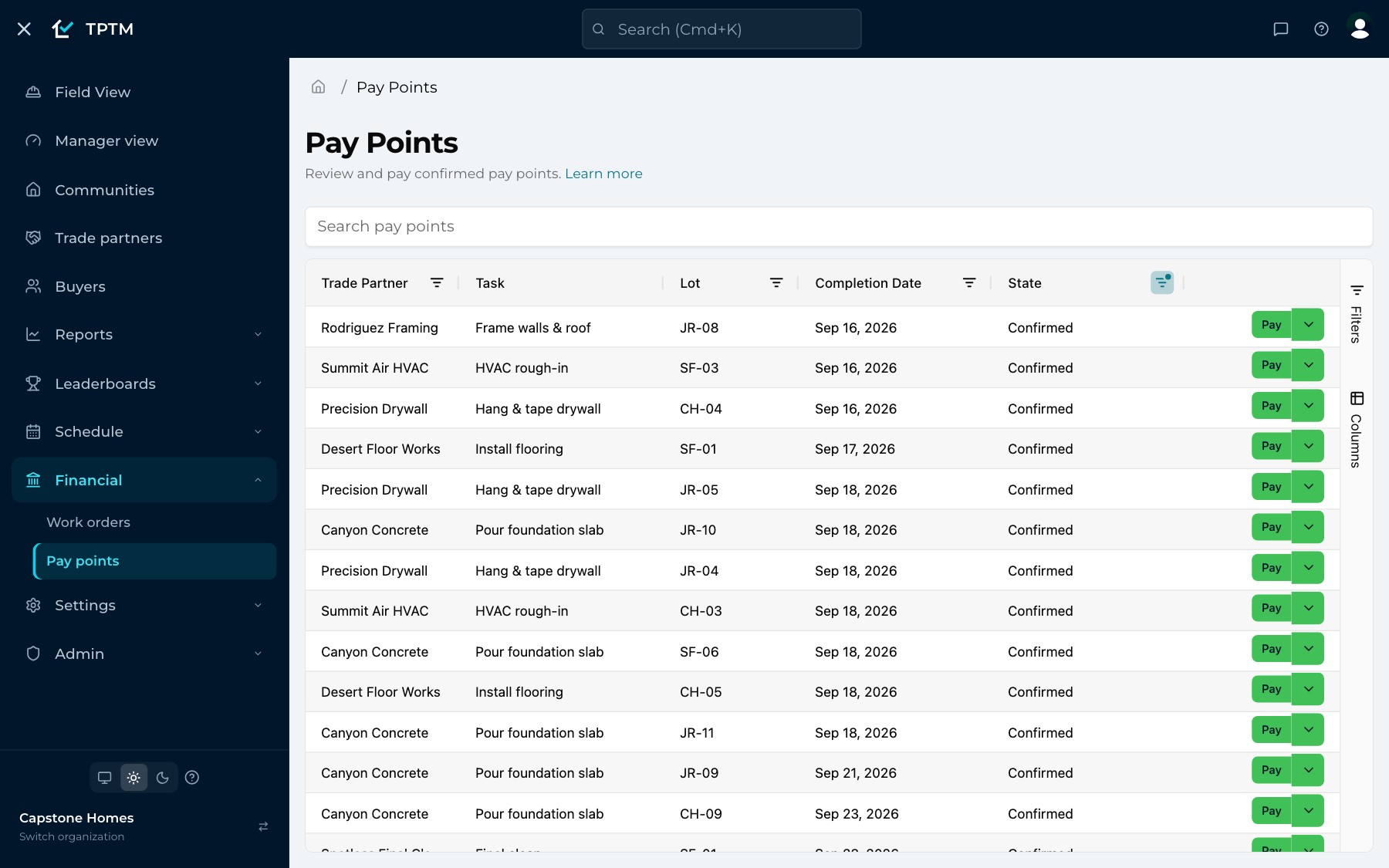
Accounting gets live lists instead of a month-end chase. The Pay Points list shows every pay point by trade partner, task, lot and state, searchable and filterable, with a Pay action right on the row. The Work Orders list does the same for work orders and back charges. Their filters are kept in the address bar, so a filtered view can be bookmarked or sent to a colleague.
- An inventory of every lot. The Lot List report lists every lot — active and archived — with its community and brand, one click from the lot itself.
- Money owed never disappears. A pay point waiting to be confirmed or paid stays on the list even if its task is later archived.
Questions
What builders ask about this.
Do we have to build or configure these reports?
No. Every report described here is part of TPTM and reads the schedule, tasks, walks and photos your team already keeps in it. The one optional setting is which extra lot details trade partners see on their Schedule Calendar, which you choose in Settings → Reports.
Do trade partners need an account to see their reports?
No. Each trade partner has a portal link that opens without signing in, and their Schedule Calendar, Task List and Tasks by Lot reports open from it. While they have unfinished work on an active lot, their contacts also get a daily email — and a text when a phone number is on file — that links straight to it.
How current is the data?
Reports read your data at the moment they are opened, so there is no overnight refresh to wait for. When a date changes on a lot, the next person to open a report sees the new date.
Can we print a report or save it as a PDF?
Yes. The trade partner reports and the community task list have a print button, and the Overall timeline, Lot Stage report and Lot schedule history are built to print. Choose Save as PDF in your browser's print dialog to keep a copy.
Can a trade partner see our target dates or internal details?
Only if you choose. The extra lot details on a trade partner's Schedule Calendar — such as Target Close, Target Quarter or Project Manager — all start off, and you pick both which details appear and which trade partners see them. Project Manager shows a last name only.
Do late and early counts include weekends and holidays?
No. Timeliness and stage durations are counted in working days, and they skip the holidays you have set, so a long weekend never makes a task or a lot look late.
Get started
Give the field a program it will actually use.
Tell us about your company and we'll show you TPTM running on homes like yours.
- Tell us about your homesTwo minutes, right here.
- See it on your communitiesA walkthrough built around how your Construction Managers and trades already work.
- Send your trades a linkNo onboarding, no sign-in. They're in.
Get started with TPTM
We'll get back to you personally.